
Free · Offline · No account · On-device AI

A private audio & video playerfor iPhone & iPad.

Make more of your recordings, privately. Turn lectures, voice memos and family recordings into transcripts, summaries, clips and captioned videos on your device, then organise them into modes and playlists with your own artwork and share what you choose. Built-in white noise with a timer is included.

Summaries and highlights, made on your iPhone

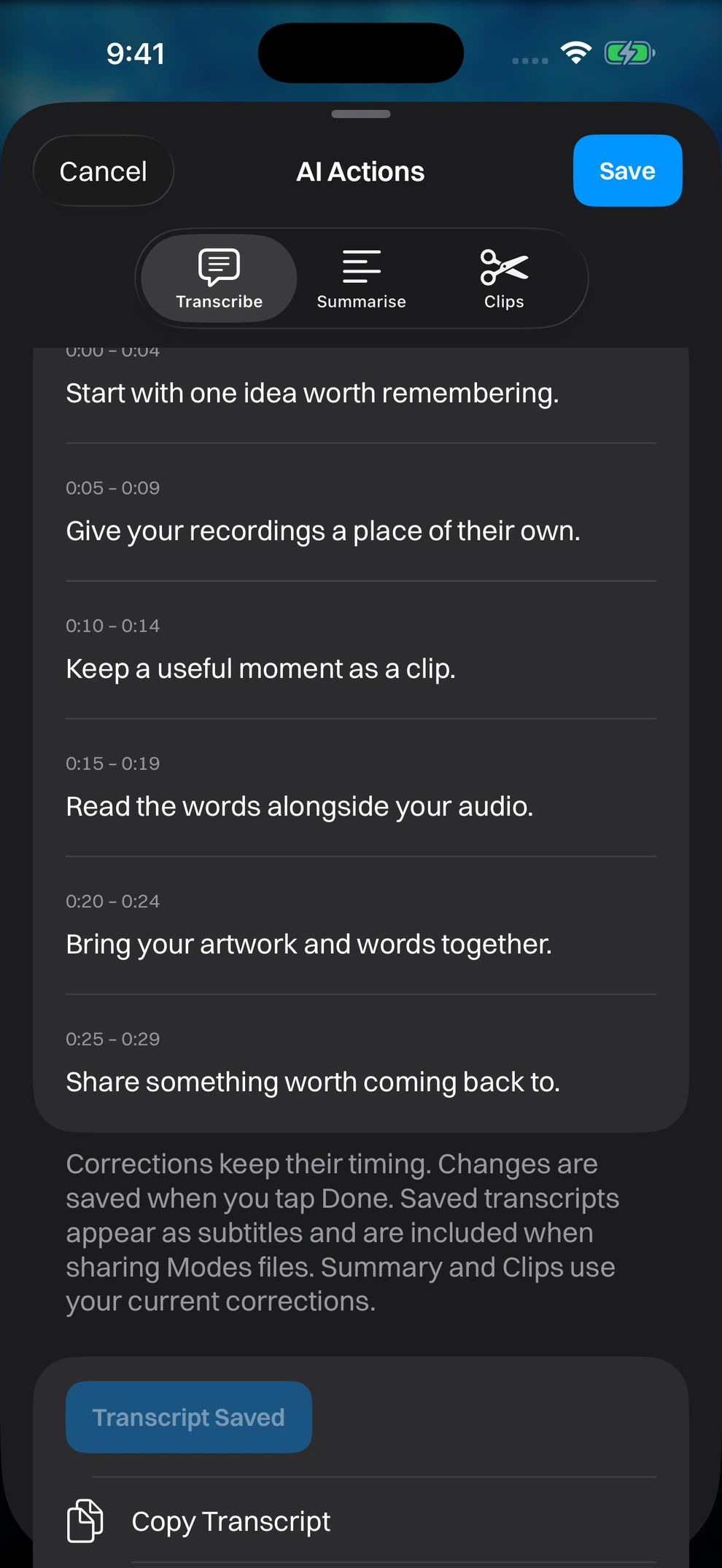
The AI Actions sheet in Modes Media Player on the Transcribe tab, with timed passages of a saved transcript, Copy Transcript and the Summarise and Clips tabs.
AI Actions, on your device. Real Modes Media Player screen with illustrative sample media.

AI Actions sits behind the sparkle button in the player and in a track’s long-press menu. Transcribe a recording, then ask for a description, an overview or the key takeaways, or let Modes suggest up to five highlights of thirty seconds, a minute or two minutes to review and keep as clips. Everything runs on your device with Apple Intelligence: no account, no cloud service and nothing sent to Zynx.

Summaries are text you can edit, copy, share or save as a PDF, and they travel with the track or clip in a .modes file, so whoever you share with can read them without Apple Intelligence. Summaries and suggested highlights need a supported iPhone or iPad running iOS 26 with Apple Intelligence turned on and a transcript in a supported language. Treat the result as a starting point to check against the recording, not a replacement for it. See how this fits a semester of lectures on the students page.

Three actions, all on your device

  1. Feature 1

    Transcribe: Apple’s on-device speech recognition, with timed passages you correct and save.

  2. Feature 2

    Summarise: a description, an overview or key takeaways from the transcript, editable and exportable as text or PDF.

  3. Feature 3

    Clips: up to five suggested highlights, previewed, trimmed and saved as ordinary clips without touching the original.

  4. Feature 4

    Apple Intelligence on supported iOS 26 devices, with no cloud fallback and no external AI service.

Turn a recording into something you can send

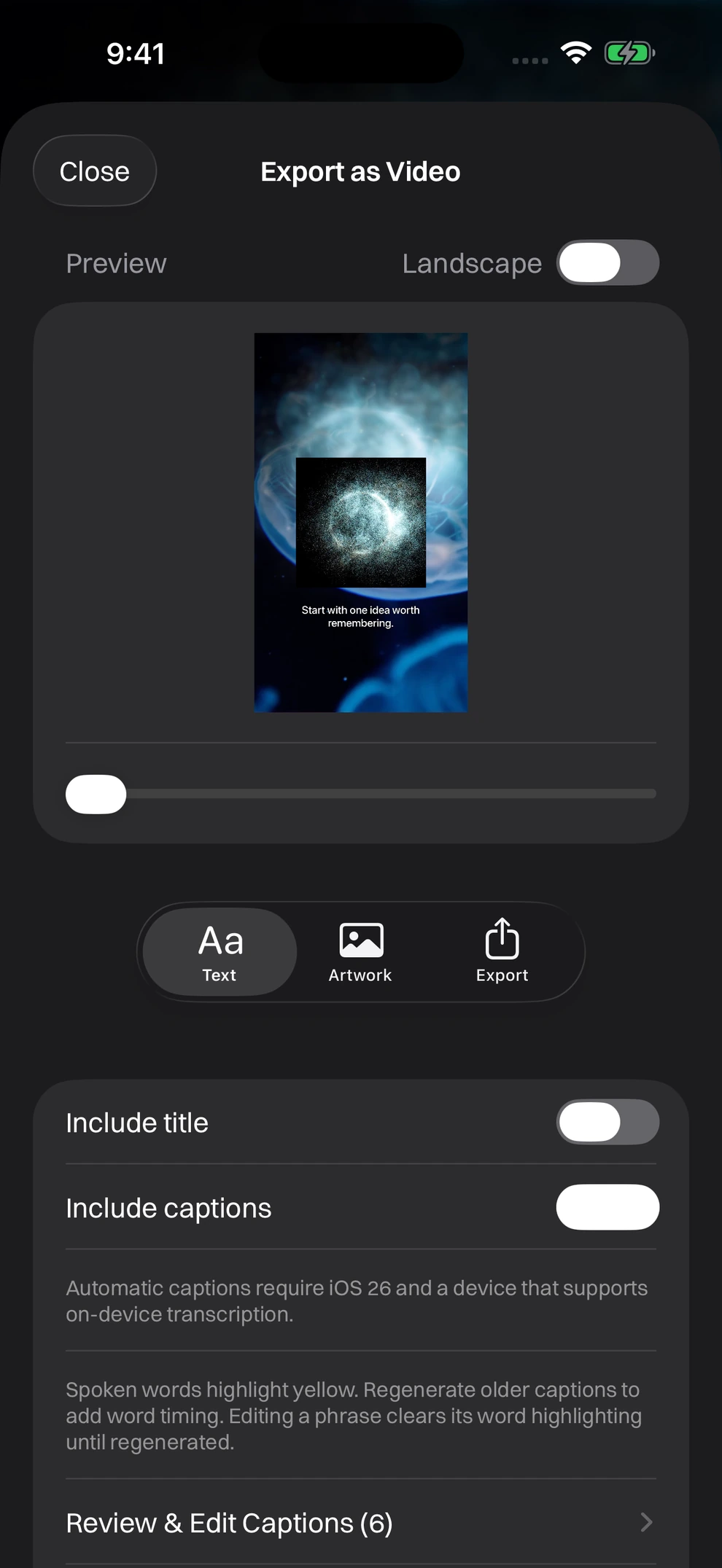
The Export as Video sheet in Modes Media Player showing a portrait preview with a caption, Text, Artwork and Export tabs and an Include captions switch.
Export as Video. Real Modes Media Player screen with illustrative sample media.

A recording does not have to stay inside Modes. Cut a clip from a track without touching the original, add up to twenty photos as slides with one shared interval, then export the result as an ordinary video file anyone can watch, no app required at the other end.

On supported iPhones running iOS 26, Modes can generate a transcript of a recording on the device. Correct the text yourself, then save it: saved transcripts show as subtitles during playback and can be burned into an exported video as captions, with each spoken word highlighted as it is said. See how this comes together for students and for families.

From a recording to something you can send

  1. Feature 1

    Clips: trim a waveform or video thumbnail down to the part that matters, without touching the original. Delete the original and keep the clip.

  2. Feature 2

    Slides: attach up to twenty photos to an audio track, with one shared interval from five seconds to three minutes.

  3. Feature 3

    Export as Video: a portrait or landscape MP4 made from the audio, artwork, slides and animated background, which the recipient can open without Modes.

  4. Feature 4

    Transcripts: generate on supported iPhones running iOS 26, correct the text, then use it as subtitles or captions.

Widgets and quick ways in

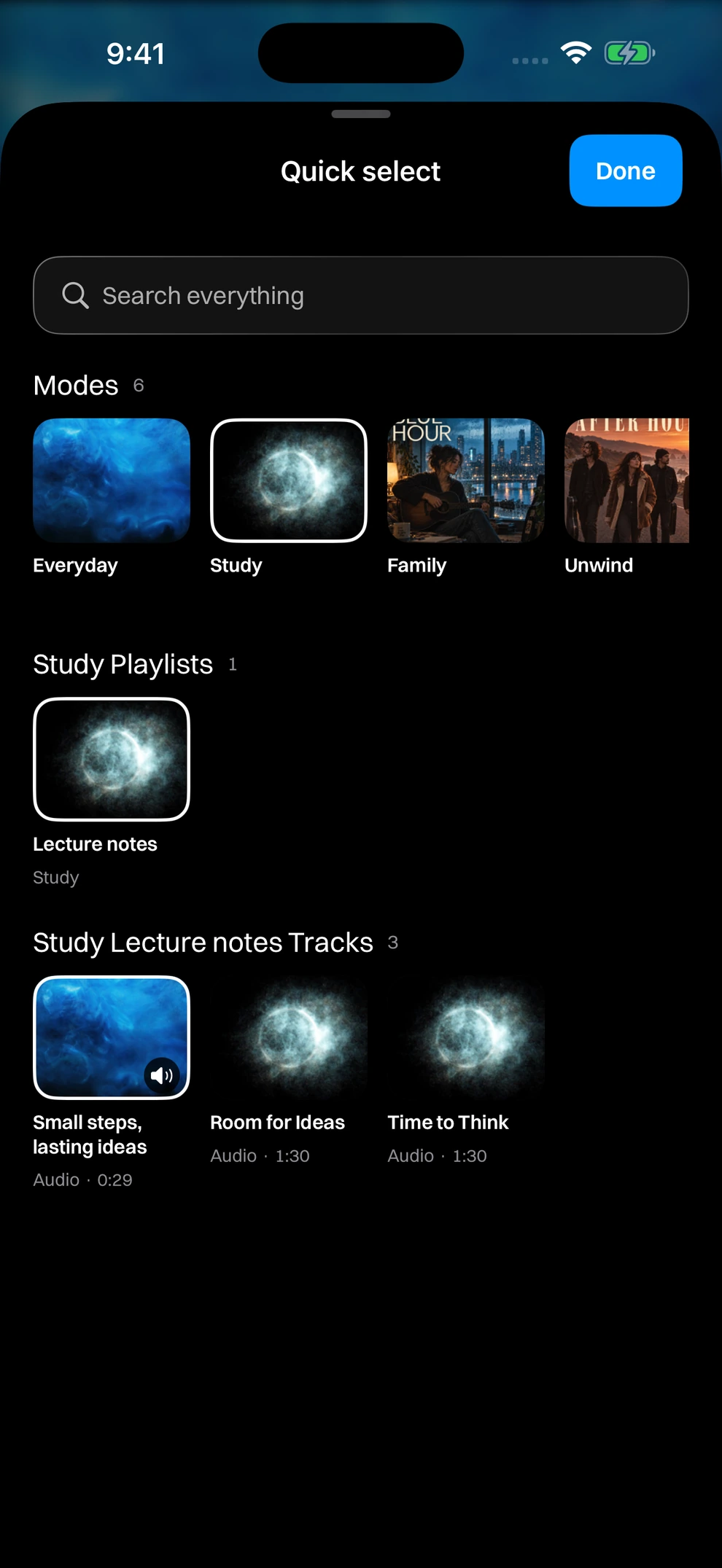
The Quick select sheet in Modes Media Player with a search field and rows of modes, Study playlists and their tracks.
Quick select. Real Modes Media Player screen with illustrative sample media.

Keep the collections you use most close at hand. Home Screen widgets open a favourite mode or show up to six modes with your own artwork and colours. The Continue Playing Lock Screen widget takes you back to your last track.

Inside the app, Modes, Playlists and Tracks are separate tabs, each with its own search and filters. Tap the app icon on any tab for Quick select, a fast way to jump straight to a mode, playlist or track. Reopening Play restores your last track paused at its saved position.

A quicker route to the right collection

  1. Feature 1

    Open a Mode and Your Modes Home Screen widgets.

  2. Feature 2

    Continue Playing from the Lock Screen.

  3. Feature 3

    Quick select behind the app icon, and drag handles to reorder modes and playlists.

Modes and playlists for the way you use your media

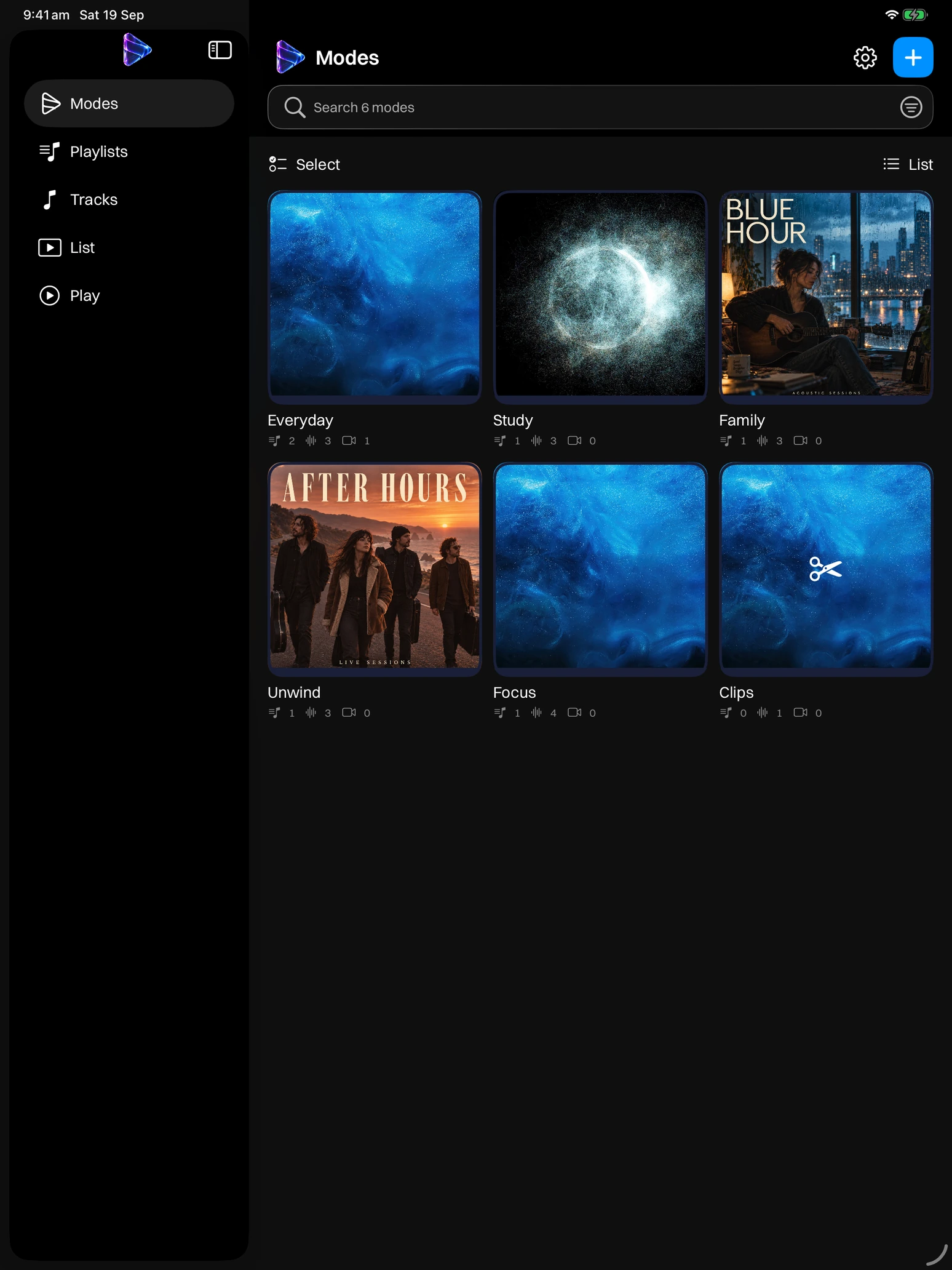
The Modes page on iPad showing the sidebar tabs and a grid of mode tiles: Everyday, Study, Family, Unwind, Focus and Clips.
Modes on iPad. Real Modes Media Player screen with illustrative sample media.

Your media can serve different parts of your day. A lesson belongs in Study, a favourite album in Gym, and a bedtime story in Family. Modes Media Player gives each context its own space, with separate audio and video playlists inside every mode.

Bring video in from Photos, and audio and video from Files or another app. Once imported, the local copies play offline. A track can appear in several modes and playlists without making duplicate media files, so your organisation can grow without copying the same recording again. If you are choosing a player, compare Modes Media Player with VLC and Infuse for a closer look at sharing, customisation and playback controls.

Start with your own files

  • Import audio and video you have permission to use, including video straight from Photos.
  • Create a mode, then arrange its audio and video playlists.
  • Add recognisable artwork and colours before you press play.
  • Choosing between apps? Check the iOS media player comparison against the features you use most.

Artwork, colours and animated backgrounds

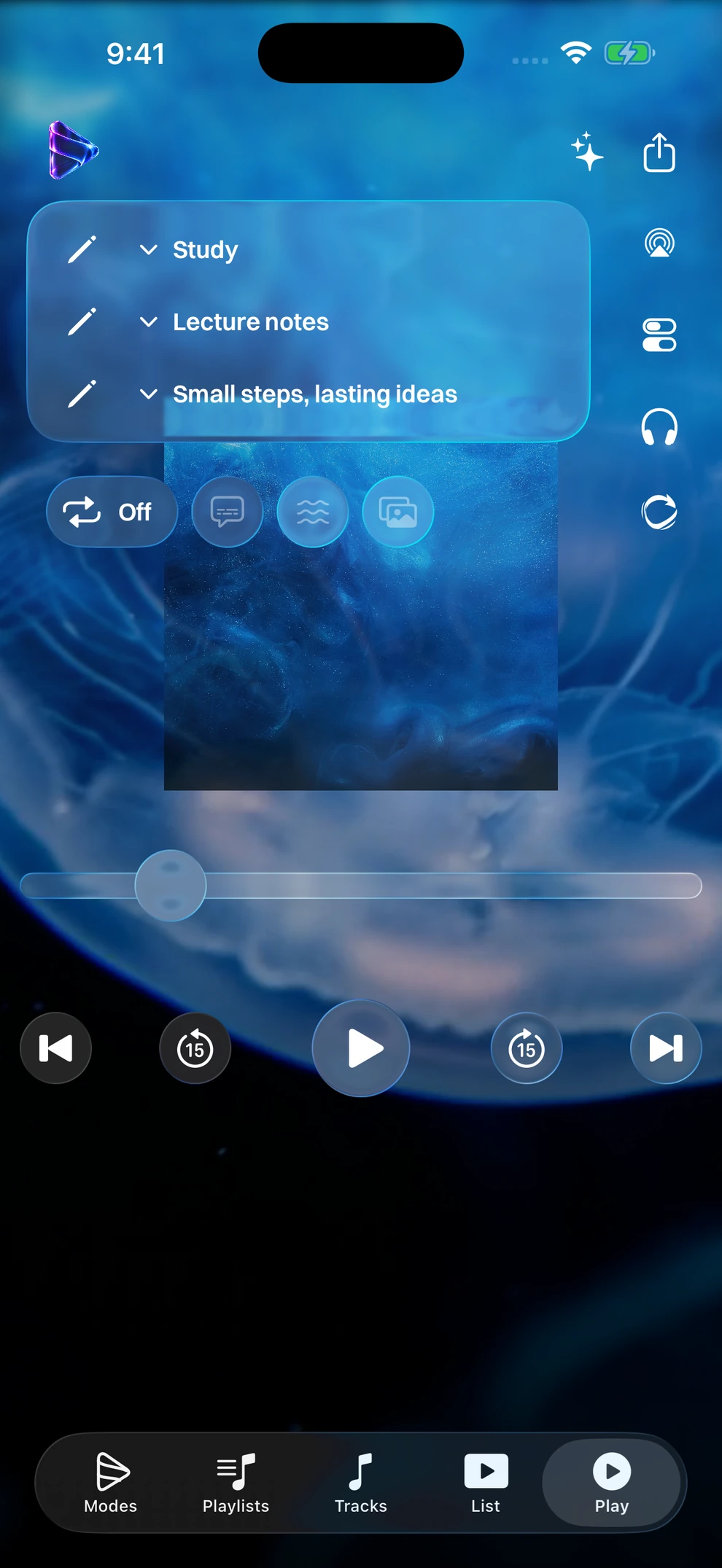
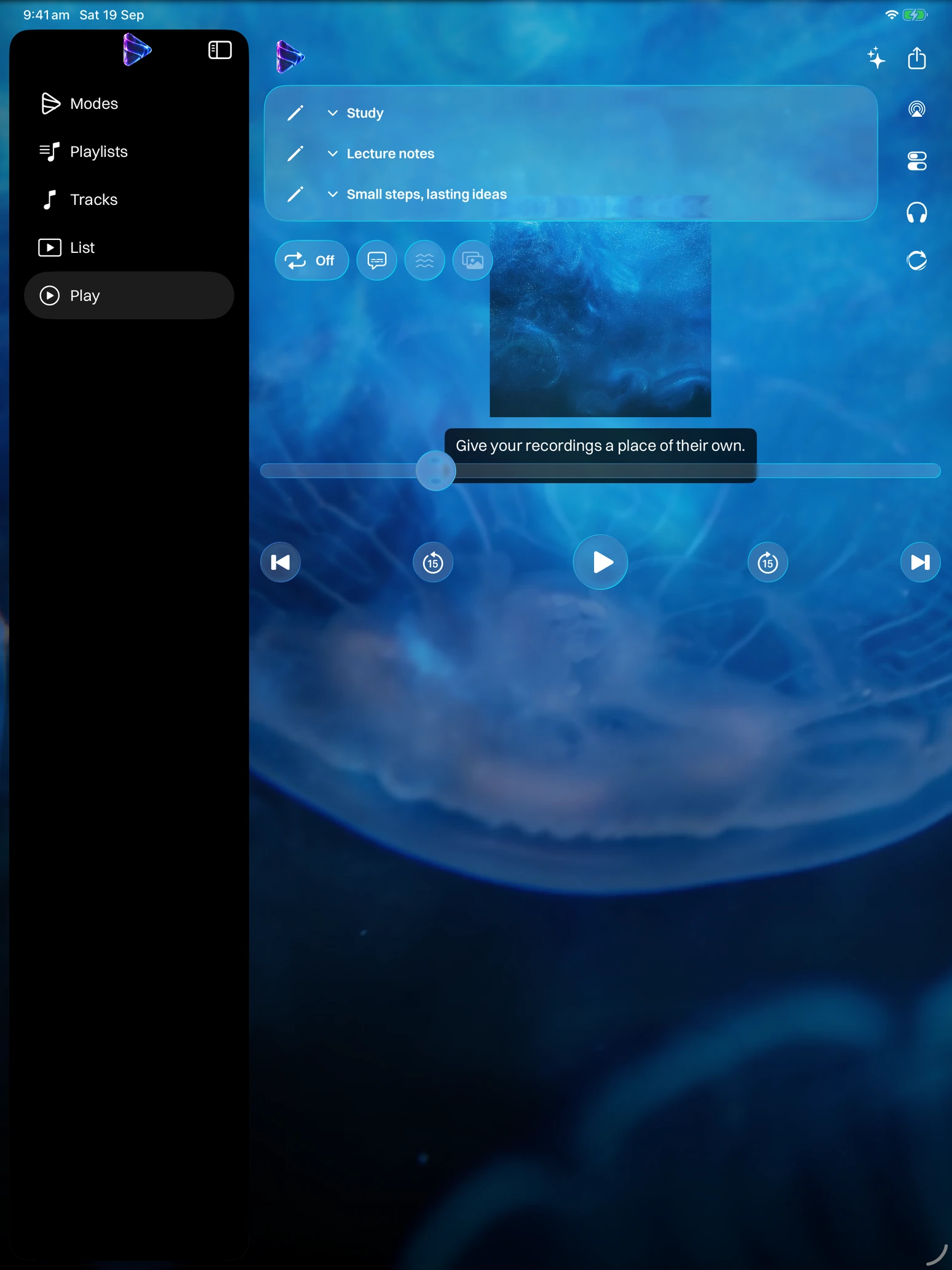
Modes Media Player playing a Study recording with square artwork over the Jellyfish animated background, repeat off, skip controls and the Modes, Playlists, Tracks, List and Play tabs.
Artwork over an animated background. Real Modes Media Player screen with illustrative sample media.

Give a playlist a cover that means something to you. Choose images and accent colours for modes and playlists, set custom track artwork and arrange the playing order. Those visual cues help you recognise the collection you want before reading every title.

In audio Play mode, artwork sits over included animated backgrounds. Choose a variety of backgrounds for a playlist and let them transition, or switch animation off when you prefer a quieter screen. The glass-style interface and quick gestures support the experience without getting between you and your media.

Make each collection recognisable

  1. Feature 1

    Custom mode, playlist and track artwork.

  2. Feature 2

    Playlist and mode accent colours.

  3. Feature 3

    Per-playlist animated background choices, with an option to turn animation off.

Share a whole collection, not just a file

Putting a collection together takes care: the right files, a useful sequence and artwork that brings it to life. Modes Media Player lets you pass that work on. Arrange an album as a playlist, or group several playlists into a mode, then share the complete collection in a portable .modes file.

The archive includes the media, track titles and custom artwork, playlist images, colours, ordering, background selections and any saved transcripts and summaries. A mode export carries its mode image and colour too. On another iPhone or iPad, a compatible version of Modes Media Player can preview and import it. This sends an independent copy; it does not create a live shared library. See how collection sharing compares across the three players.

Transfer a collection

  1. Feature 1

    Use Share beside the mode or playlist controls and select what to export.

  2. Feature 2

    Send the .modes file with the system share sheet, or save it to Files.

  3. Feature 3

    Open the file in Modes Media Player on the receiving device, review the preview and import.

Tracks, List and the gestures in Play

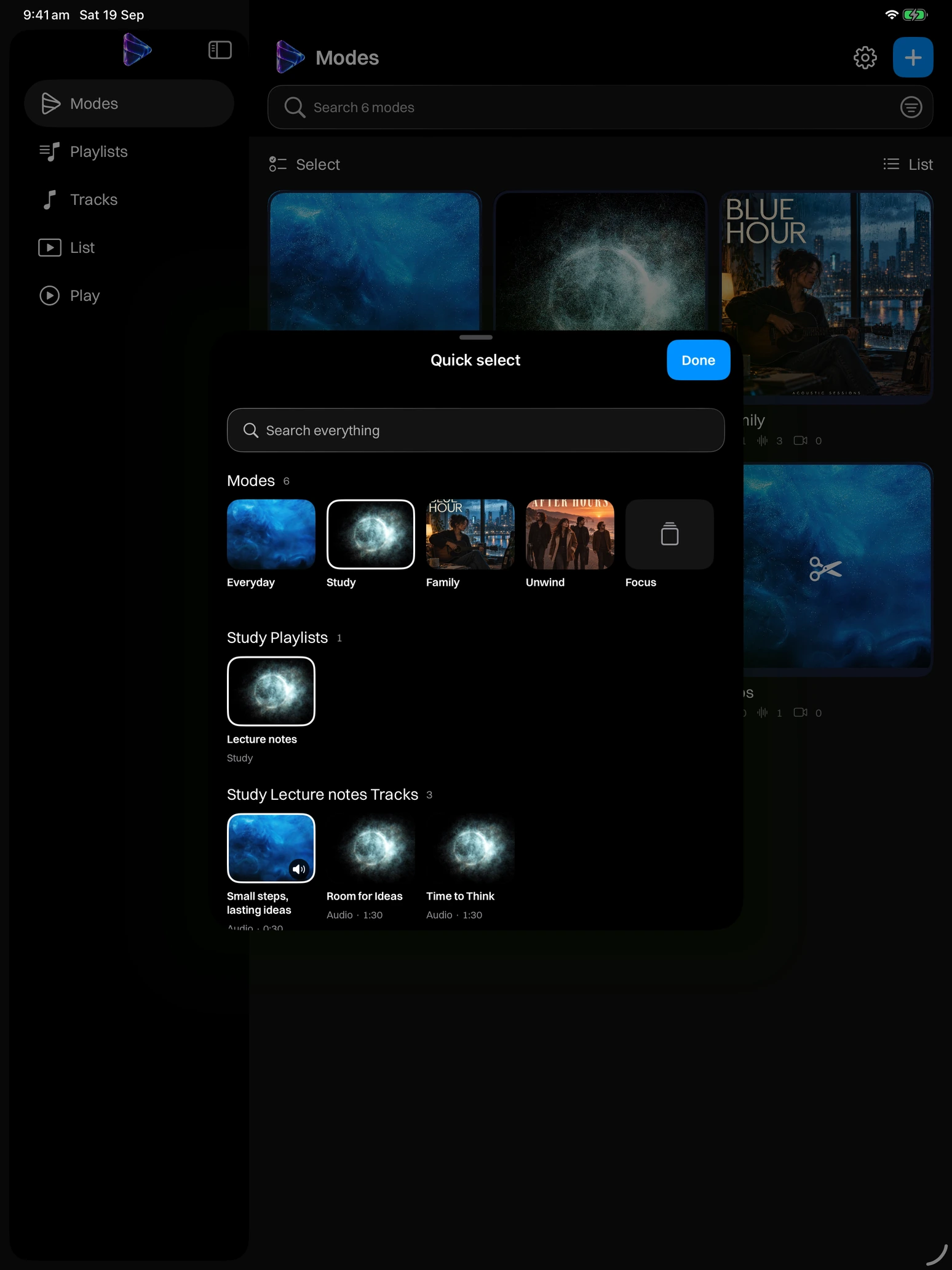
The Quick select sheet over the player on iPad, listing the modes, the Study playlists and their tracks.
Quick select on iPad. Real Modes Media Player screen with illustrative sample media.

Tracks lists every audio and video file in the current mode, with search, filters and sorting, a Select control for bulk actions, a List or Tiles layout, and duration and media-type columns. List shows the mode’s playlists with their tracks ready to expand. Play puts artwork and video at the centre: swipe vertically to move between non-empty playlists, double-tap the left or right edge to change tracks, and press and hold the background, artwork or video to move to the next playable mode. Swipe sideways to move between the five tabs, or tap the app icon for Quick select.

Loop a favourite track or repeat the whole playlist. Clips, saved playback positions, adjustable speed and sleep timers help with longer recordings; volume uses your device’s own controls. Audio continues in the background with Lock Screen controls and AirPlay; video can open full screen or use Picture in Picture where supported.

See every track. Move with a gesture.

  1. Feature 1

    Tracks with search, filters, sorting, Select and a List or Tiles layout.

  2. Feature 2

    Vertical playlist swipes and edge double-taps for tracks in Play; sideways swipes between tabs.

  3. Feature 3

    Track repeat, playlist repeat and a timer that can stop at the end of the current file.

For parents and family routines

Keep favourite stories, songs and home videos in a Family mode. Separate audio and video playlists make it easier to pick the right activity, while familiar cover artwork makes the collections recognisable. A bedtime playlist can have its own order and timer without changing the daytime favourites.

Share a prepared collection with another caregiver who uses Modes Media Player, including its artwork and organisation. You choose the media your family plays and shares.

A simple family setup

  1. Feature 1

    Family mode: Stories in Audio and Favourite Videos in Video.

  2. Feature 2

    A Bedtime audio playlist with a chosen order and sleep timer.

  3. Feature 3

    One exported playlist for a grandparent or another caregiver.

For students and study recordings

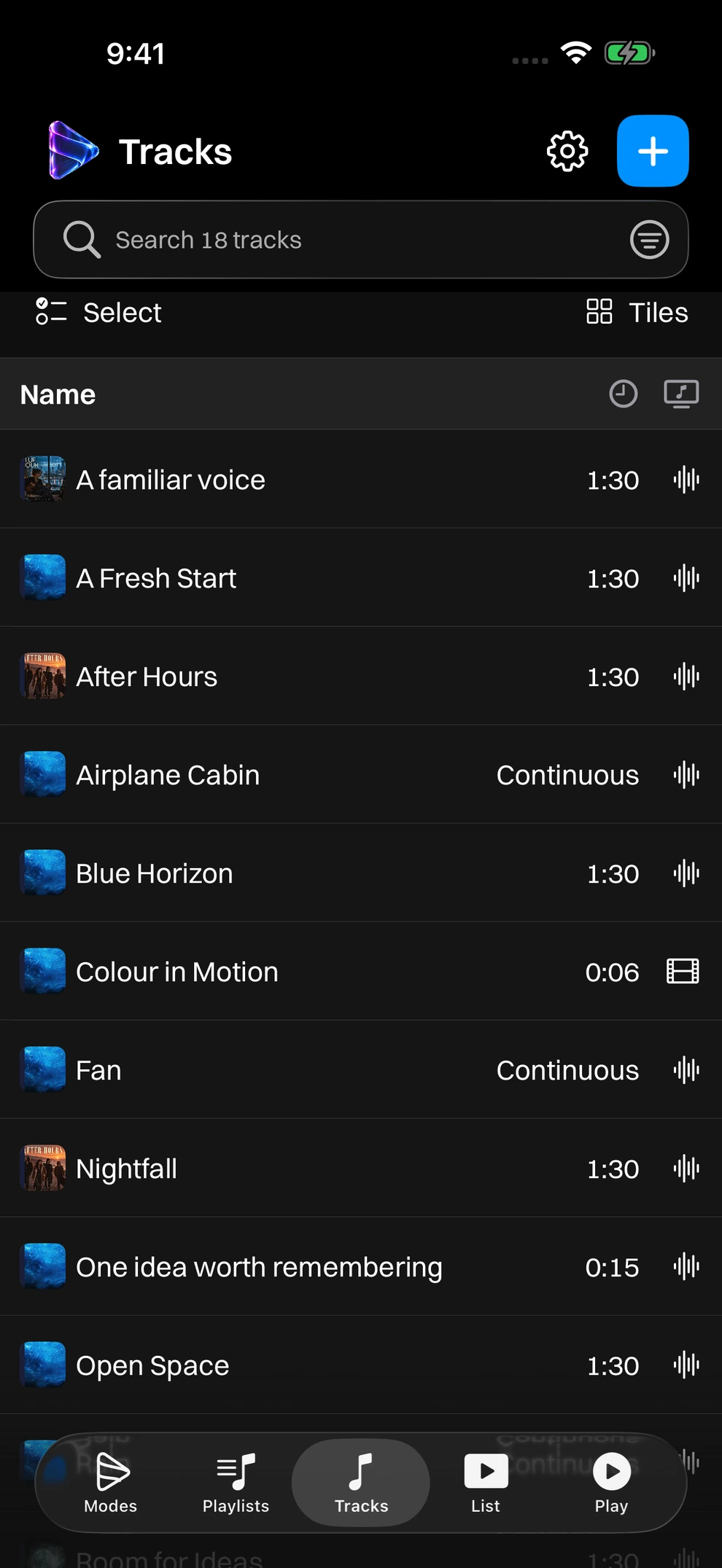
The Tracks page in Modes Media Player with a search field, Select and Tiles controls, and rows showing each recording’s name, duration and media type.
Every recording in Tracks. Real Modes Media Player screen with illustrative sample media.

Make a Study mode for lecture recordings, language practice or revision videos you have permission to use. Separate playlists by subject or topic, then use the Tracks tab to jump to the lesson you need. Cut a clip to revisit a passage, generate a transcript on a supported iOS 26 iPhone, and set a playback speed that suits the recording. The students page walks through the whole setup.

When a study group uses the same files, one person can organise a playlist and share it with classmates. Its titles, order and artwork travel together, so everyone can start with the same prepared collection. Each person then keeps control of their own copy.

A practical revision library

  1. Feature 1

    One playlist per subject or topic.

  2. Feature 2

    Clips for the passages you want to revisit.

  3. Feature 3

    Shared study collections for compatible Modes Media Player apps.

For workouts and workdays

Build a Gym mode with playlists for different sessions, set the sequence and loop the collection when you want it to continue. Artwork and colours give each playlist a recognisable identity, while background audio lets you keep listening when the screen is locked.

At a desk, a Work mode can keep instrumental tracks separate from training recordings. For tradies and other people moving between jobs, importing ahead of time means a prepared local playlist does not depend on streaming reception. Pick the library before the session and use the system playback controls when convenient.

Collections for different routines

  1. Feature 1

    Workout tracks arranged in your preferred order.

  2. Feature 2

    Instrumental playlists alongside work-related recordings.

  3. Feature 3

    Offline listening after the files have finished importing.

White noise, built in

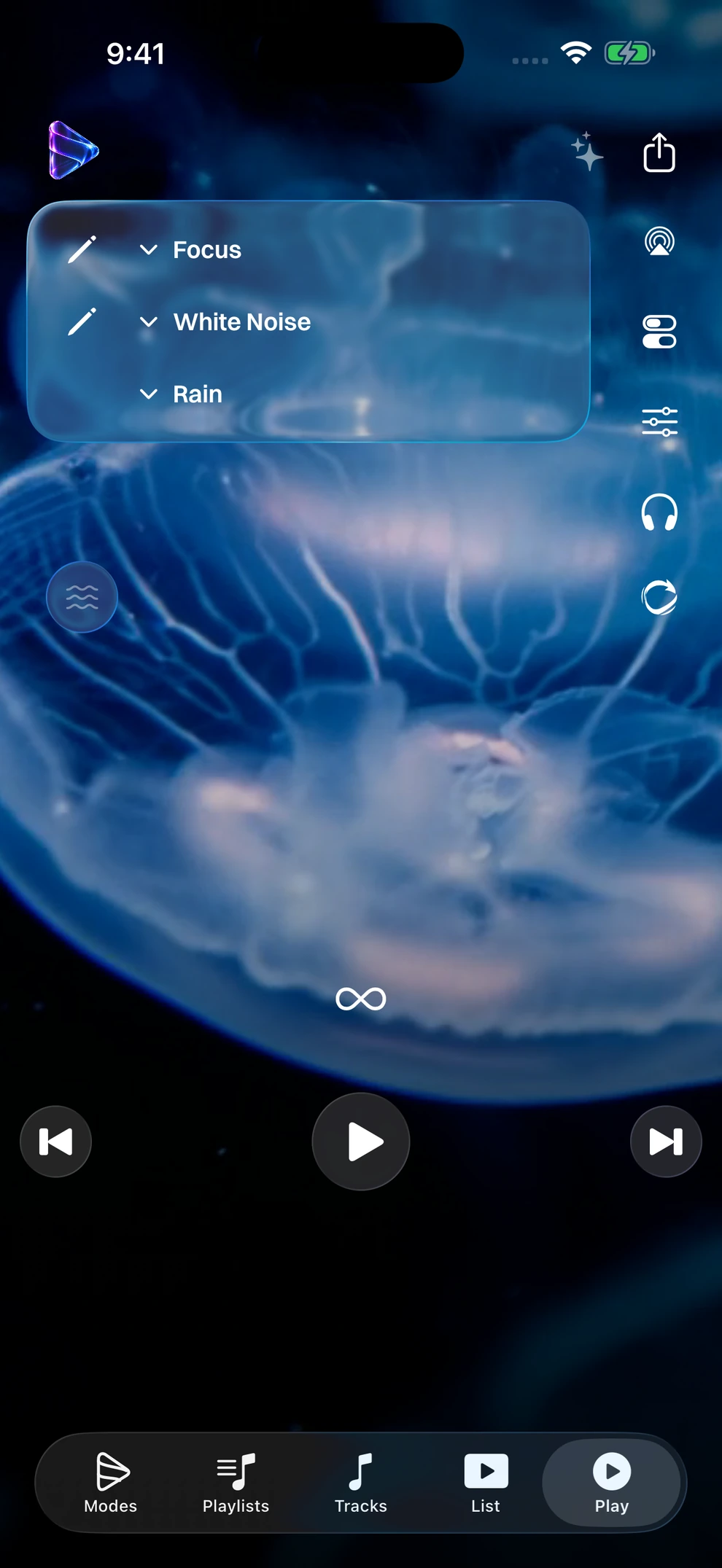
Focus mode in Modes Media Player playing Rain over the Jellyfish background with the timer set to continuous, above the Modes, Playlists, Tracks, List and Play tabs.
Focus and its built-in sounds. Real Modes Media Player screen with illustrative sample media.

Focus mode sits alongside your personal modes and plays four built-in sounds: Rain, Fan, Airplane Cabin and White Noise. Choose a sound and set a timer without importing anything; volume uses your device’s controls.

Your own music, stories and videos stay in your personal modes. Focus is a separate, ready-made option for a steady background sound during work, study or bedtime.

For personal collections

A personal library might hold favourite albums, religious talks, family recordings or videos saved from a source that permits downloads. Give each collection clear artwork and titles, then choose the Tracks tab or Play according to how you prefer to browse.

For an older relative who likes familiar recordings, a prepared playlist with recognisable covers can be a useful starting point. Media enthusiasts can build separate audio and video collections and revisit them offline. Modes Media Player works with the files you bring; it is not a downloader for streaming services.

Free, offline and without an account

Modes Media Player on iPad playing a Study recording with artwork, a caption, a progress slider and skip controls over an animated background.
Player on iPad. Real Modes Media Player screen with illustrative sample media.

Modes Media Player is free. It stores imported media and library information on your device, and no account, subscription, advertising or tracking is required. An optional tip in Settings supports development and unlocks nothing. Export when you want to share, and use a full library backup when you want to carry saved positions and clip definitions as well as your collections.

For iPhone with iOS 17.0 or later and iPad with iPadOS 17.0 or later. The App Store lists the app as Modes Media Player. Read the Modes Media Player privacy policy for details about local files and exports, or get product support if you need help with your library.

Modes Media Player FAQs

Frequently Asked Questions

How can I get to my media quickly in Modes Media Player?
Modes Media Player includes Home Screen and Lock Screen widgets, a Mode switcher and direct playback navigation. Open a mode from its widget, hold the player background to move to the next playable mode, or tap the app icon on any tab for Quick select. Play reopens your last track paused at its saved position. Your artwork, playlists and portable collection sharing stay together.
Can I open a playlist collection from my Home Screen?
Yes. Add Open a Mode for one chosen mode, or Your Modes for up to six modes in your saved order. Tap a tile to open its library. Widgets use the artwork and colours you chose in Modes. The Continue Playing Lock Screen widget opens the app and resumes your last track. Open the app once after installing to make your modes available to widgets.
How do I switch modes while playing?
Choose a mode from the selector above the playlist, or press and hold the player background, artwork or video to move to the next playable mode in your saved order. Empty modes are skipped. Swipe vertically for playlists and double-tap the left or right edge of Play for tracks; the selectors also let you choose directly, and a sideways swipe moves between tabs.
What is Modes Media Player?
Modes Media Player is a customisable audio and video player for iPhone and iPad. Organise your own files into modes and playlists, add artwork and colours, and share complete collections. It does not include a music or video catalogue.
Is Modes a private media player?
Private in the sense that matters for your recordings: your library, transcripts and summaries stay on your iPhone or iPad, speech recognition and Apple Intelligence run on the device, there is no account, no advertising or tracking, and no cloud AI service. Modes is not a vault: it does not hide or passcode-lock your library, and your device passcode is what protects it.
Can Modes organise all the audio and video on my iPhone?
Modes organises the audio and video you bring into it: voice memos and other recordings shared from the share sheet, videos imported from Photos, and files from Files, iCloud Drive or another app. Imports are copies, so Photos, Voice Memos and Files keep their originals. It is a home for the recordings and media that do not belong in a photo library or a streaming app, not a replacement for Photos.
Is Modes Media Player a free media player for iPhone and iPad?
Yes. Modes Media Player is free on the App Store, with no account, subscription or advertising. It is a player for your own audio and video files, so it does not include a music subscription or a music or video catalogue. Focus mode includes four built-in sounds: White Noise, Rain, Fan and Airplane Cabin. An optional tip in Settings supports development and unlocks nothing.
Can I customise an iPhone music player with artwork and animated backgrounds?
Yes. Modes Media Player supports custom track artwork, mode and playlist images, accent colours and saved track order. In audio Play mode, your artwork appears over a choice of included animated backgrounds. Choose backgrounds for each audio playlist, let them transition automatically or switch animation off. The app provides the background choices; you provide your music and artwork.
Can I play my own music and videos offline on iPhone or iPad?
Yes. Import video from Photos, bring audio and video in through Files, or share files into Modes Media Player from Voice Memos or another app. After importing, the stored copies play without an internet connection. Audio and video playlists stay separate within each mode, and background audio lets you keep listening while using another app. Cloud-only files need to be downloaded before import.
What is the difference between a mode and a playlist?
A mode is a space for a part of your day, such as Family, Study or Gym. Create as many modes as you like. Each mode has separate audio and video playlists, so a Family mode can hold bedtime audio alongside favourite videos. A file can belong to several modes and playlists while sharing one stored copy.
Can I transfer an entire mode or playlist to another iPhone or iPad?
Yes. Use the share control for modes or playlists, select the collection and export it as a .modes file. Send it using the iOS share sheet, for example with AirDrop, or save it to Files. On the receiving device, open the file in a compatible version of Modes Media Player, review the import and confirm. Both devices do not need to keep a modal open.
Does sharing keep artwork, playlist colours and track information?
A mode or playlist archive includes its media files, track titles and custom artwork, playlist images and accent colours, track ordering and selected background choices. A mode export also carries the mode identity, image and colour. Saved transcripts and summaries travel with their tracks. These archives share the collection’s presentation; a full library backup additionally carries saved playback positions and clip definitions. Device settings are not all part of a shared collection.
Will importing replace my existing library?
Imports add to your library and reuse matching items. Repeat imports refresh matching titles, artwork and collection presentation and order, while retaining existing memberships and personal listening data. The import preview lets you review the collection first. Sharing sends a copy; later changes do not automatically sync between devices.
How do I import audio and video files?
Import video straight from Photos, choose the import control to select compatible files through Files, or share files into Modes Media Player from Voice Memos or another app and choose where they go in the share sheet. Download any cloud-only files first. Once importing finishes, the app-owned copies can play offline. Modes Media Player does not download music or videos from streaming services or any other source on the internet.
Can I use Modes Media Player for children’s audio and videos?
Parents can make a Family mode, keep audio stories and videos in separate playlists, and choose recognisable artwork for each collection. A prepared playlist can be shared with another caregiver who uses Modes Media Player. You choose and provide the content; the app is not a children’s streaming service or a parental-control tool.
Is it a media player for students and study recordings?
Yes. Make a Study mode for lecture recordings, pronunciation practice or revision videos you have permission to use. Use the Tracks tab to find a lesson, cut a clip and use playback speed to revisit a passage, then share an organised playlist with classmates who use a compatible version of the app.
Can Modes Media Player transcribe a recording?
On supported iPhones and iPads running iOS 26, Modes can generate a transcript of an audio or video recording on the device, using Apple’s on-device speech recognition. A speech language model may need downloading the first time. Correct the timed passages, then save them: a saved transcript shows as subtitles during playback, can be copied, shared or saved to Files, and becomes the captions of an exported video. Reading and editing a saved transcript works on every supported device.
Does Modes Media Player use AI, and does it send my recordings anywhere?
Modes adds AI Actions: transcribe, summarise and suggest highlight clips. Transcription uses Apple’s on-device speech recognition. Summaries and highlight suggestions use Apple Intelligence on the device through Apple’s Foundation Models framework. Nothing is sent to Zynx or to any cloud AI service, and there is no account. Summaries and highlights need a supported iPhone or iPad running iOS 26 with Apple Intelligence turned on and a transcript in a supported language; Apple’s built-in content filter can occasionally decline a request. Saved summaries can be read, edited and shared on any supported device, and they travel inside a .modes file.
Can I turn a voice recording into a video?
Yes. Export as Video makes a portrait or landscape MP4 from an audio track, its artwork, up to twenty slides and a supported animated background, with optional captions from a saved transcript. The result is an ordinary video file that anyone can open without Modes. Video tracks can be exported the same way, with a blurred fill for the unused canvas.
Can I loop a track or a whole playlist?
Yes. Repeat can loop the current track or the playlist. Use the Tracks tab when you want to see the sequence, or Play for an artwork-focused view with gesture navigation.
Do I need a subscription, account or internet connection?
No account or subscription is required, and the app has no advertising or tracking. An optional tip in Settings supports development and unlocks nothing. Imported local files play offline. Downloading from a cloud file provider or sending a file through an online sharing service may require a connection. The app does not provide cloud synchronisation.
Which devices are supported?
Modes Media Player supports iPhone with iOS 17.0 or later and iPad with iPadOS 17.0 or later. Check the App Store for the current version and availability in your region. Visual treatments and system playback features can vary with the device and operating system.
What happens if I delete a mode or playlist?
Removing a mode or playlist changes the organisation and keeps its media files. Files without a mode remain in Unassigned. Deleting an individual media item removes the app-owned copy after confirmation; copies you exported elsewhere are managed separately.

Personal media for iPhone & iPad

Bring a file. Make it a favourite.

Start with your own album, recording or video. Arrange a playlist, choose its artwork and share it with someone who uses Modes Media Player. Keep playing from your local library after you go offline.

Free. No account, subscription or advertising. An optional tip in Settings supports development and unlocks nothing.. For iPhone with iOS 17.0 or later and iPad with iPadOS 17.0 or later.

Download on the App Store