

Family recordings,organised and easy to share.
Keep bedtime stories, home videos and a grandparent’s voice memo in a Family mode of their own. Add photos as slides, cut a clip, and export a video anyone in the family can open, no app required.
A family mode of your own
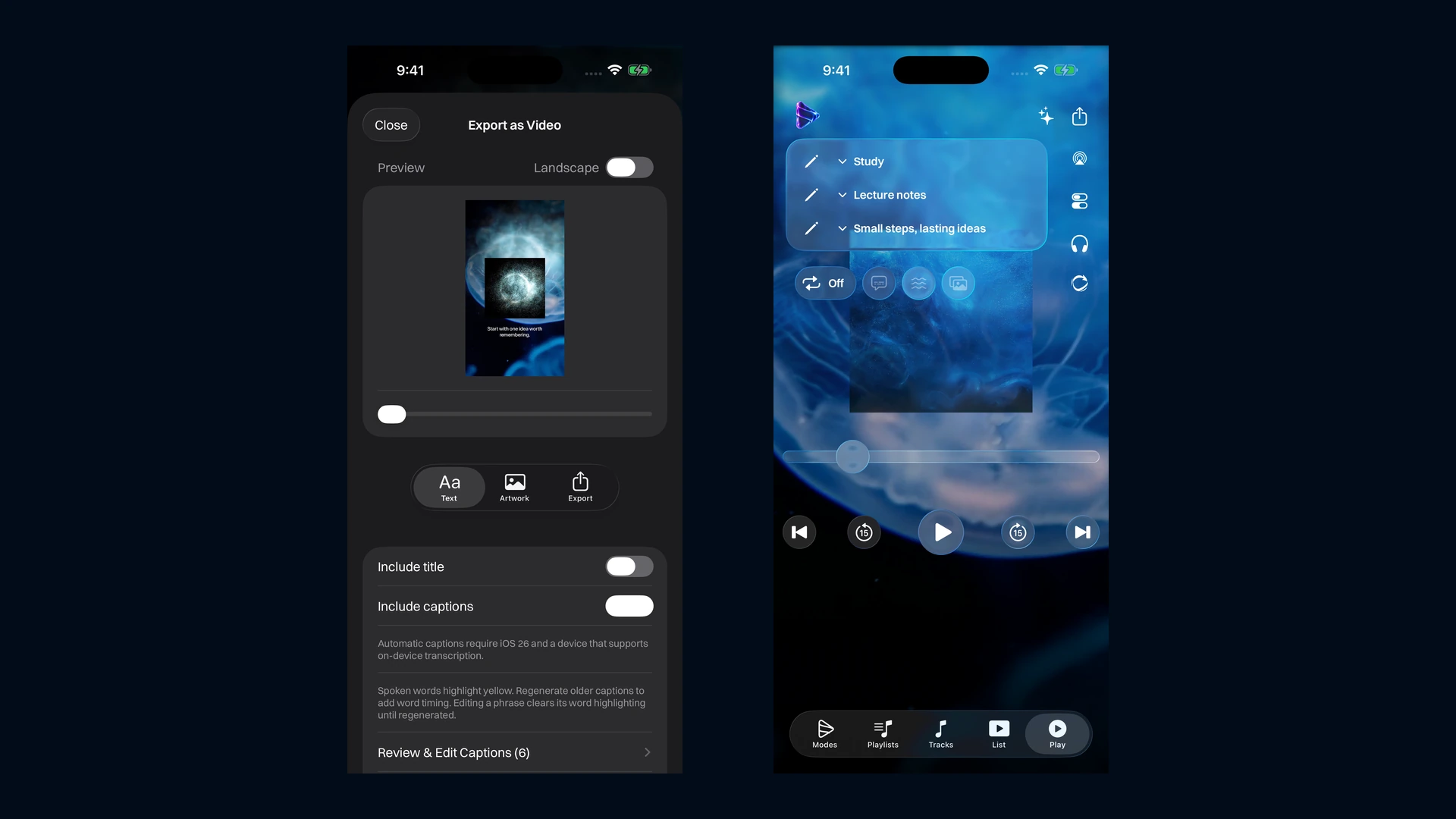
Give the family a space of its own. Keep bedtime stories, favourite songs and home videos together in a Family mode, with separate audio and video playlists inside it. Artwork, images and accent colours make the collection recognisable at a glance, for you and for anyone you share it with.
A recording can belong to more than one mode and playlist without making an extra copy, so a favourite song can sit in Family and in a quiet-evening mode of your own.
A recognisable family library
- Feature 1
A Family mode with separate audio and video playlists.
- Feature 2
Artwork, images and colours you choose for each collection.
- Feature 3
One stored file can belong in more than one playlist.
Bring in a voice memo or a video
Import video straight from Photos: choose a mode and playlist, pick the videos and confirm. For audio, share a Voice Memos recording, or a recording from another app, through the iOS share sheet and choose where it goes, a mode, a playlist or Unassigned, right there. Modes remembers your last choice next time.
Modes Media Player does not record audio or video itself, and it does not download from the internet. It plays and organises recordings you already have or that someone shares with you.
Two ways to bring media in
- Feature 1
Import from Photos for video, straight into a mode and playlist.
- Feature 2
Share audio from Voice Memos or another app, and choose its destination in the share sheet.
- Feature 3
Bring audio and video files in through Files as well.
Photos that travel with the recording
A voice memo is more to look at when a few photos travel with it. Attach up to twenty photos from Photos or Files to an audio track as slides, and choose one shared interval, from five seconds to three minutes, for how long each one shows.
Photos travel with a recording as slides; the app does not import photos on their own. Slides are images attached to a track, not a separate photo library inside Modes.
Slides, attached to a recording
- Feature 1
Up to twenty photos per track, from Photos or Files.
- Feature 2
One shared interval for the whole set, from five seconds to three minutes.
- Feature 3
Slides stay with the track they were added to, not a photo library.
Cut the part that matters
Not every recording needs to be shared in full. Trim a clip from the waveform of an audio track, or from the thumbnails of a video, down to the part worth keeping, the grandchildren’s speech at the wedding, or the best minute of a long home video. Clips are non-destructive: the original stays untouched until you choose to delete it.
If you do delete the original, you can choose to keep the clips you have already made as their own files. Group related clips into a clip playlist of their own.
Trim without losing the original
- Feature 1
Waveform trimming for audio, thumbnail trimming for video.
- Feature 2
The original stays untouched until you choose to delete it.
- Feature 3
Keep clips as separate files when you do delete the original.
- Feature 4
On a supported iOS 26 device with Apple Intelligence, AI Actions can suggest highlights from a saved transcript for you to review and keep as clips.
Export a video anyone can open
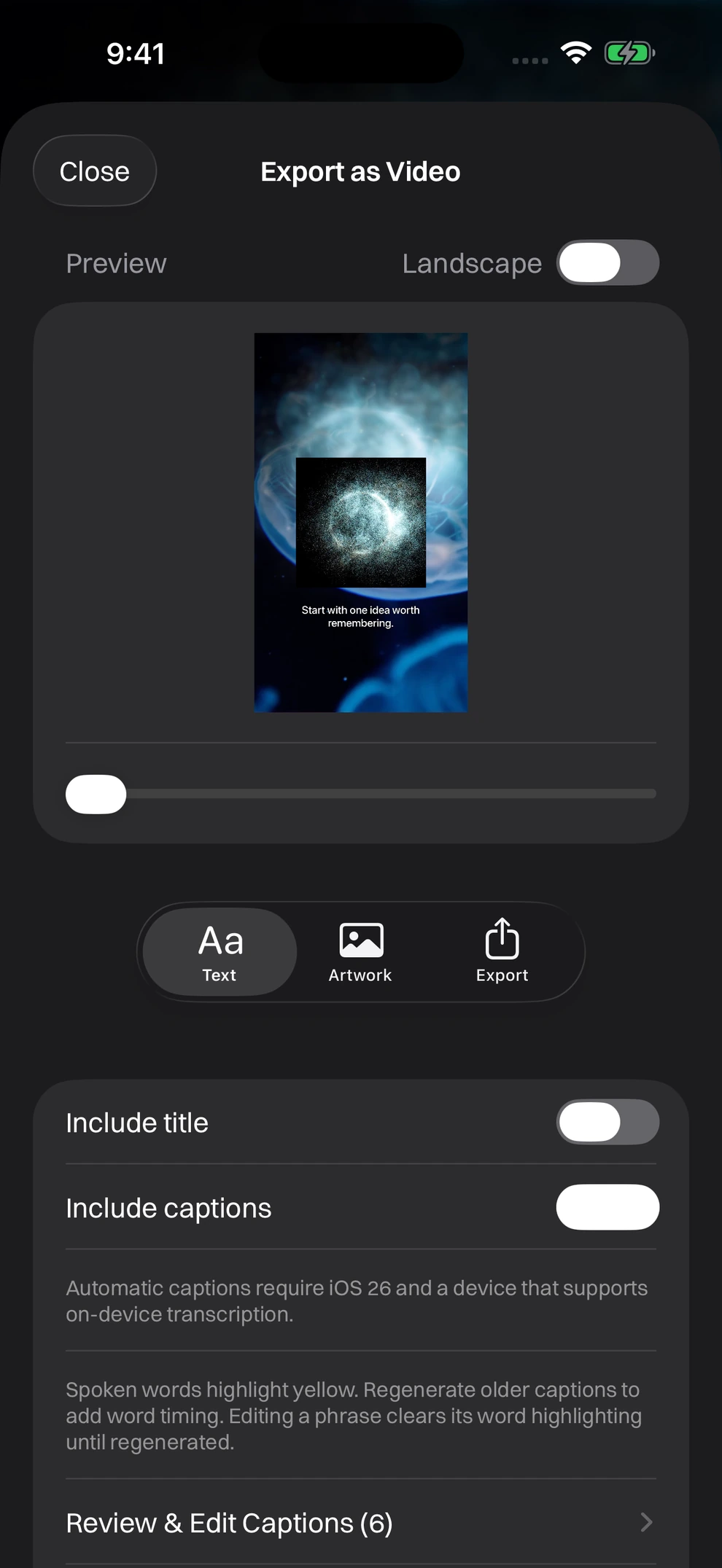
This is the part that makes Modes useful beyond the family members who have it installed. Take a voice memo with its twenty slides, or a video track, and export it as a portrait or landscape MP4, with an optional blurred background filling the frame. The result is an ordinary video file: share it to the family group chat, and nobody on the other end needs Modes to watch it.
A voice recording plus a few photos becomes a video you can send to anyone.
One export, no app required to watch it
- Feature 1
Portrait or landscape MP4, with an optional blurred background fill.
- Feature 2
Works for a video track, or an audio track with slides attached.
- Feature 3
Share, save to Files or save to Photos once it is done.
Add a transcript, if you want captions
On supported iPhones and iPads running iOS 26, Modes can generate a transcript of a recording on the device. Review and correct the text yourself, then save it. A saved transcript appears as subtitles during playback, and can be burned into an exported video as captions, with each spoken word highlighted as it is said.
Generating a transcript may download a language model from Apple the first time. Reading, editing and sharing a transcript that has already been saved works on every supported device, whatever iOS version it runs.
Share the whole collection with family who have the app
Send it with AirDrop or the system share sheet, or save it to Files. On the receiving device, they review the import in a compatible version of Modes and confirm it. See how this compares with sending files another way in the iOS media player comparison.
Free, and kept on the family’s own devices
Modes Media Player is free, with no account, subscription or advertising. An optional tip in Settings supports development and unlocks nothing. Imported media, artwork and library information stay on the device; nothing is uploaded to a Zynx-hosted service.
For iPhone with iOS 17.0 or later and iPad with iPadOS 17.0 or later. Read the Modes Media Player privacy policy for how imports, exports and transcripts are handled, or explore the full Modes Media Player feature list.