

Lecture recordings,organised, clipped and transcribed.
Bring voice memos, lecture videos and downloads into one Uni mode with a playlist per subject. Transcribe and summarise a lecture on a supported iOS 26 device, keep the ten minutes that matter as a clip, and share a subject playlist with classmates.
A Uni mode with a playlist per subject
Lecture recordings end up scattered: a Voice Memos capture here, a lecturer’s video download there. Bring them into one Uni mode, with a separate playlist for each subject, so a semester’s recordings stay organised by what they are actually for.
Artwork and colours make each subject playlist easy to spot. A recording can belong to more than one playlist, for a unit that crosses two subjects, without storing a second copy.
One mode, organised by subject
- Feature 1
A Uni mode with a separate playlist per subject.
- Feature 2
Artwork and colours to tell subjects apart at a glance.
- Feature 3
One stored recording can sit in more than one playlist.
Add a recording from Voice Memos or Photos
Recorded a lecture in Voice Memos? Share it through the iOS share sheet, choose Modes Media Player, then pick the subject playlist it belongs in right there, Modes remembers that choice next time. A lecture video your course provides, or one you already own, imports straight from Photos into the same Uni mode.
Modes Media Player does not record audio or video itself, and it does not download lectures or anything else from the internet. It organises recordings you already have.
Two ways in, one destination
- Feature 1
Share a Voice Memos recording and choose its subject playlist in the share sheet.
- Feature 2
Import video from Photos, videos your course provides or that you already own.
- Feature 3
Bring files in through Files as well, for downloads and other apps.
Listen faster, find the part you need
Set a faster playback speed for a long lecture, and use the Tracks tab to jump straight to the recording you are after by searching titles across the whole library. Loop a track or a whole playlist when a passage needs another pass.
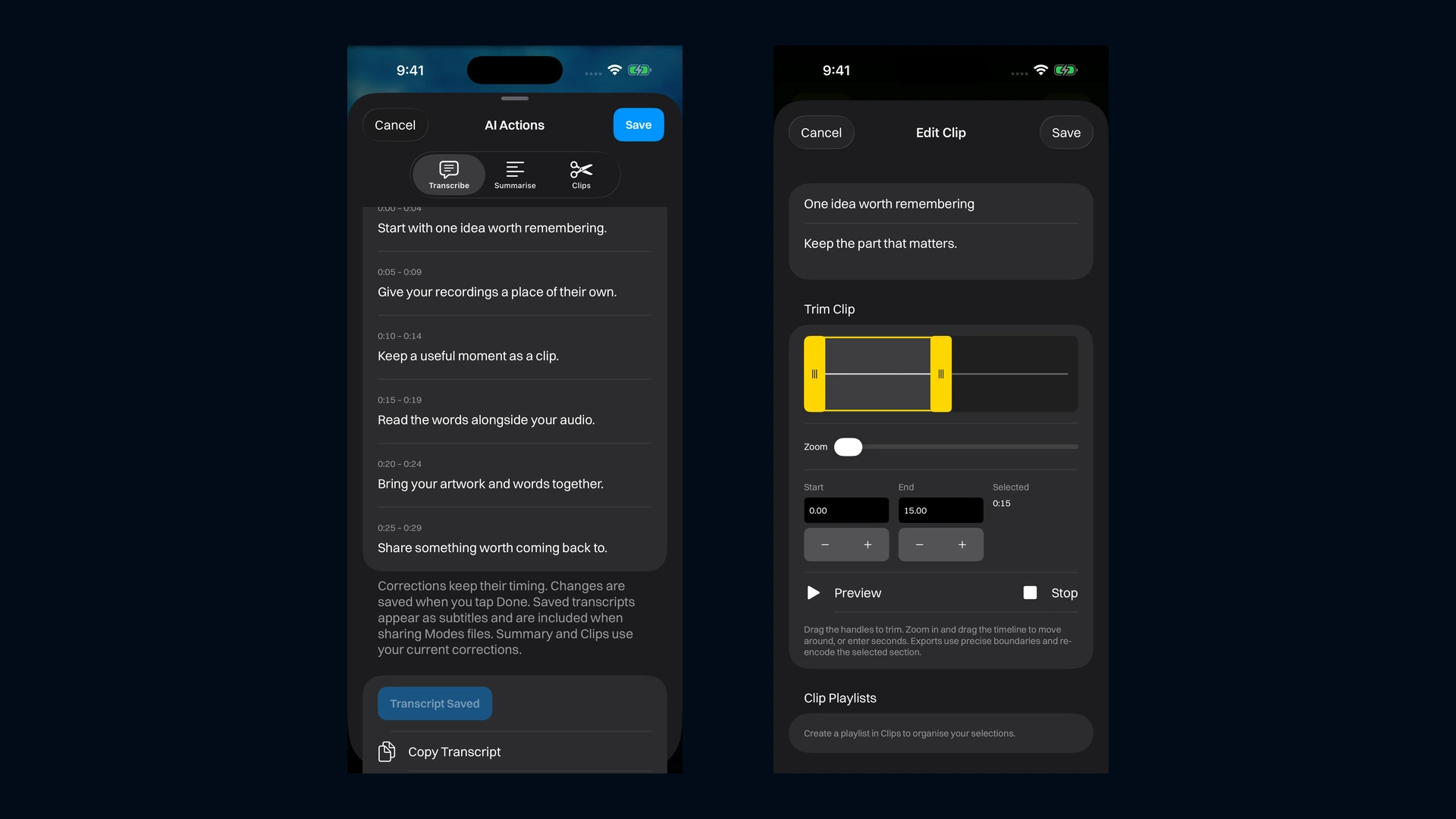
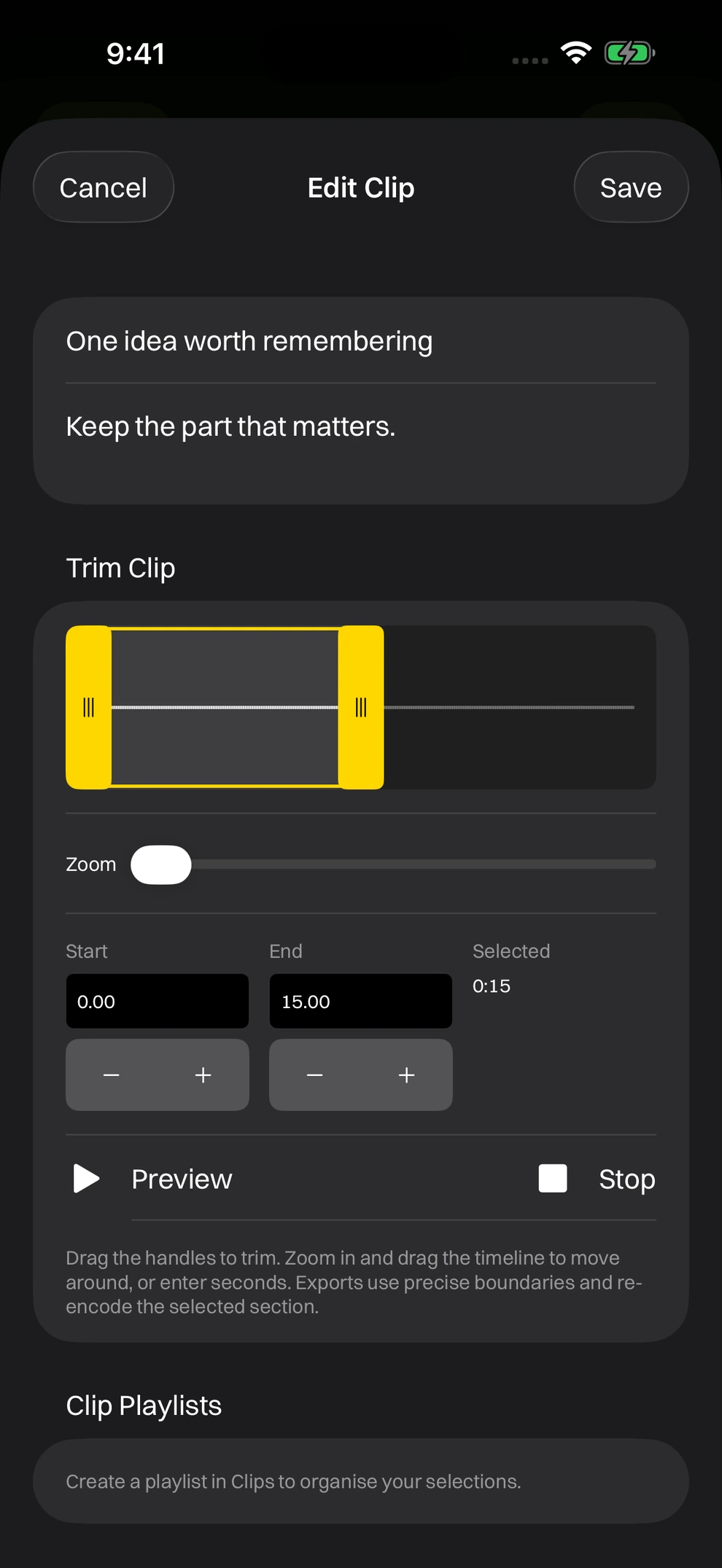
Cut a clip from a recording’s waveform down to the two minutes that matter, without touching the original. Trim as many clips from one lecture as you need.
Playback built for revision
- Feature 1
Adjustable playback speed for long recordings.
- Feature 2
The Tracks tab to search and find a specific lecture.
- Feature 3
Clips: trim the part that matters, non-destructively.
Generate a transcript and correct it
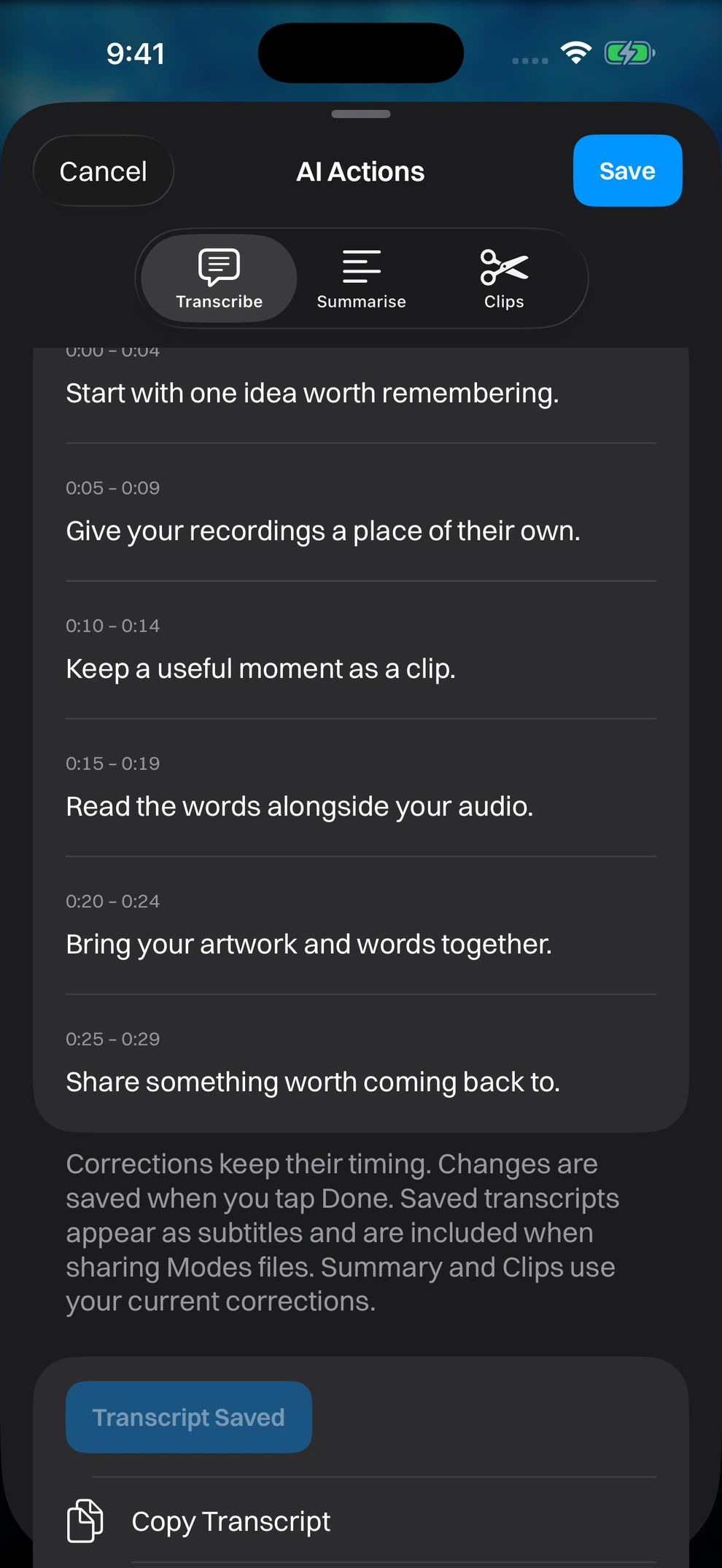
Open AI Actions from the sparkle button in the player or a track’s long-press menu. On supported iPhones and iPads running iOS 26, the Transcribe tab generates a transcript of a lecture recording on the device. Review it and correct anything the recognition missed, then save it: a saved transcript shows as subtitles during playback and can be copied, shared or saved to Files. Export a clip as a video and the transcript becomes its captions, with each spoken word highlighted as it is said.
Generating a transcript may download a language model from Apple the first time it is used. This is a starting point for notes, not a finished, error-free transcription; check it against the recording before you rely on it.
Summarise a lecture and keep the highlights
With a transcript saved, AI Actions can write a short description, an overview or a list of key takeaways for the lecture, and suggest up to five highlights of thirty seconds, a minute or two minutes. Preview a suggestion, trim it in the clip editor if you want, then keep it as an ordinary clip; the original recording is never changed.
Summaries and highlight suggestions use Apple Intelligence on a supported iPhone or iPad running iOS 26, with the model on the device and nothing sent to a server. They need a transcript in a supported language, Apple Intelligence turned on, and a first-time model download. Edit the text, copy it into your notes, or save it as a PDF, and check it against the recording before an exam: it is a summary, not the lecture.
From a two-hour recording to a page of notes
- Feature 1
Description, overview or key takeaways, generated on the device from your corrected transcript.
- Feature 2
Up to five suggested highlights to review, trim and keep as clips.
- Feature 3
Editable text, saved with the track, shareable as text or PDF, carried inside a .modes file.
Share a subject playlist with classmates
Prefer to send one clip instead of the whole playlist? Export just that clip as a video with captions from a saved transcript, an ordinary file that does not need Modes to open.
Two ways to share what you have organised
- Feature 1
Share a whole subject playlist as a .modes file, with titles, artwork, order, transcripts and summaries intact.
- Feature 2
Export a single clip as a captioned video anyone can open.
Free, with no subscription
Modes Media Player is free on the App Store, with no account, subscription or advertising. An optional tip in Settings supports development and unlocks nothing.
For iPhone with iOS 17.0 or later and iPad with iPadOS 17.0 or later. Read the Modes Media Player privacy policy for how imports, exports and transcripts are handled, or explore the full Modes Media Player feature list.