

Make a clip
Keep the useful part of a recording while preserving the original.
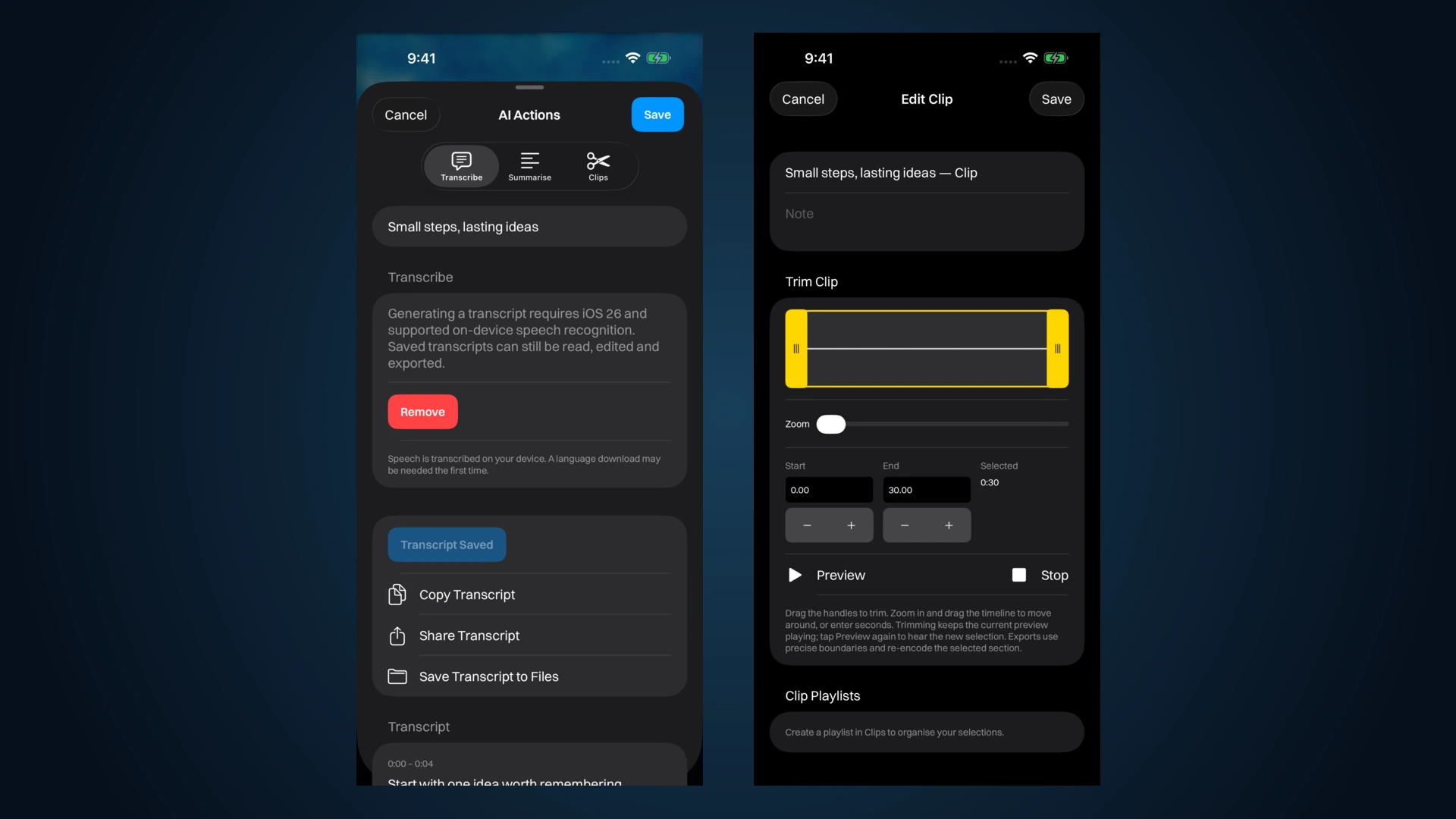
Open the clip editor
Open Trim media from the player, or Edit Media → Clips → Create Clip. Audio shows a waveform and video shows thumbnails. Choose the portion you want to keep.
Choose the start and end
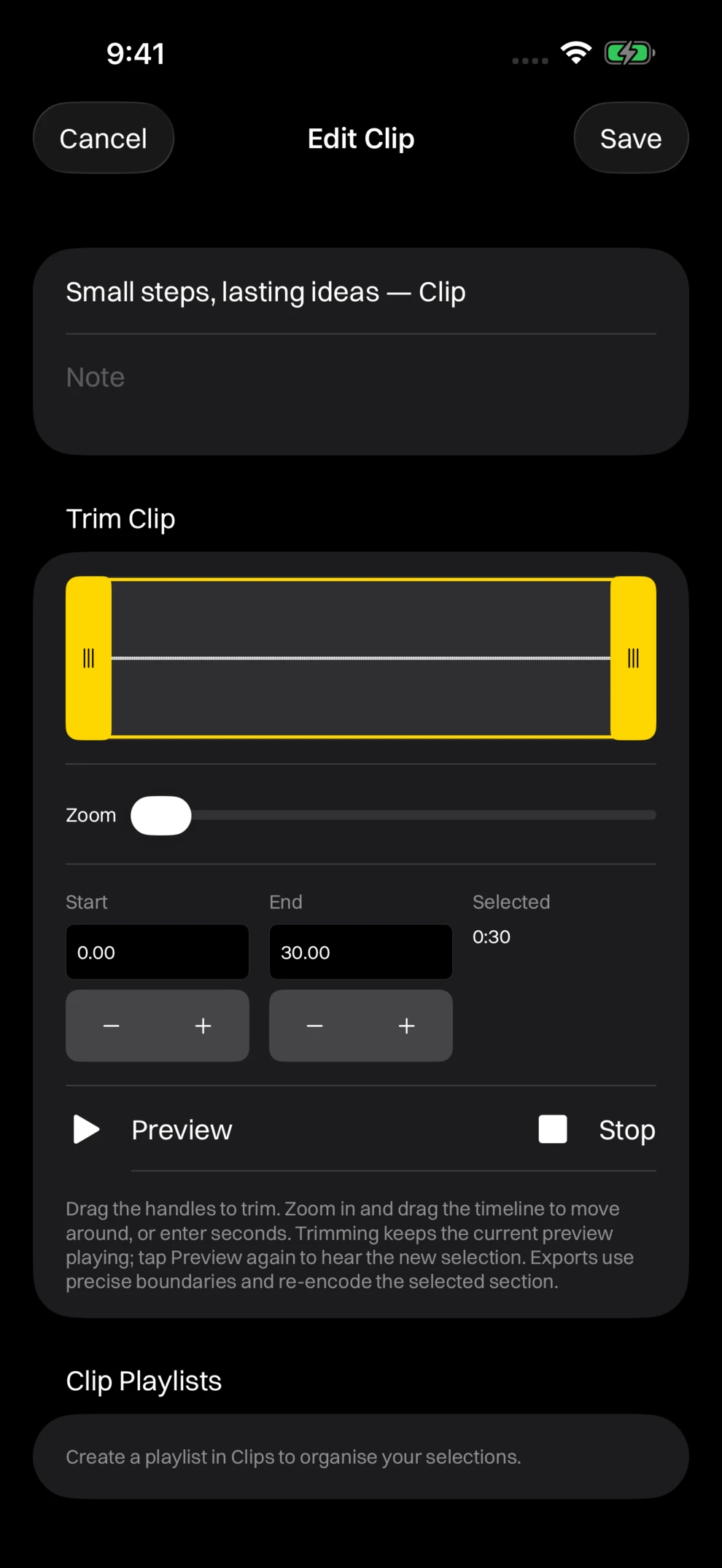
Drag the selection handles, zoom or pan for precision, and use the start/end values and small nudges for fine adjustments. Press Preview to hear or watch the selected range. If you move a boundary after previewing, preview again to check the new range.
Name and save it
Give the clip a useful title and a note, then choose its playlists and save. For revision, use a specific concept as the title and a reminder or question as the note. The original recording remains unchanged.
Play or share it
Find the saved excerpt in Clips. Playback stays within its selected range; repeat can replay that passage. Sharing renders the selected range as an ordinary audio/video file, while a clip playlist can export its selected excerpts in order.
Update the text
A clip can have its own saved transcript. Changing its boundaries clears its clip-specific transcript and summary because they describe a different passage. Review the opening and closing words, then regenerate or correct text for the new selection.