

Make AI summaries
Use AI Actions to turn a corrected transcript into editable notes and suggested excerpts.
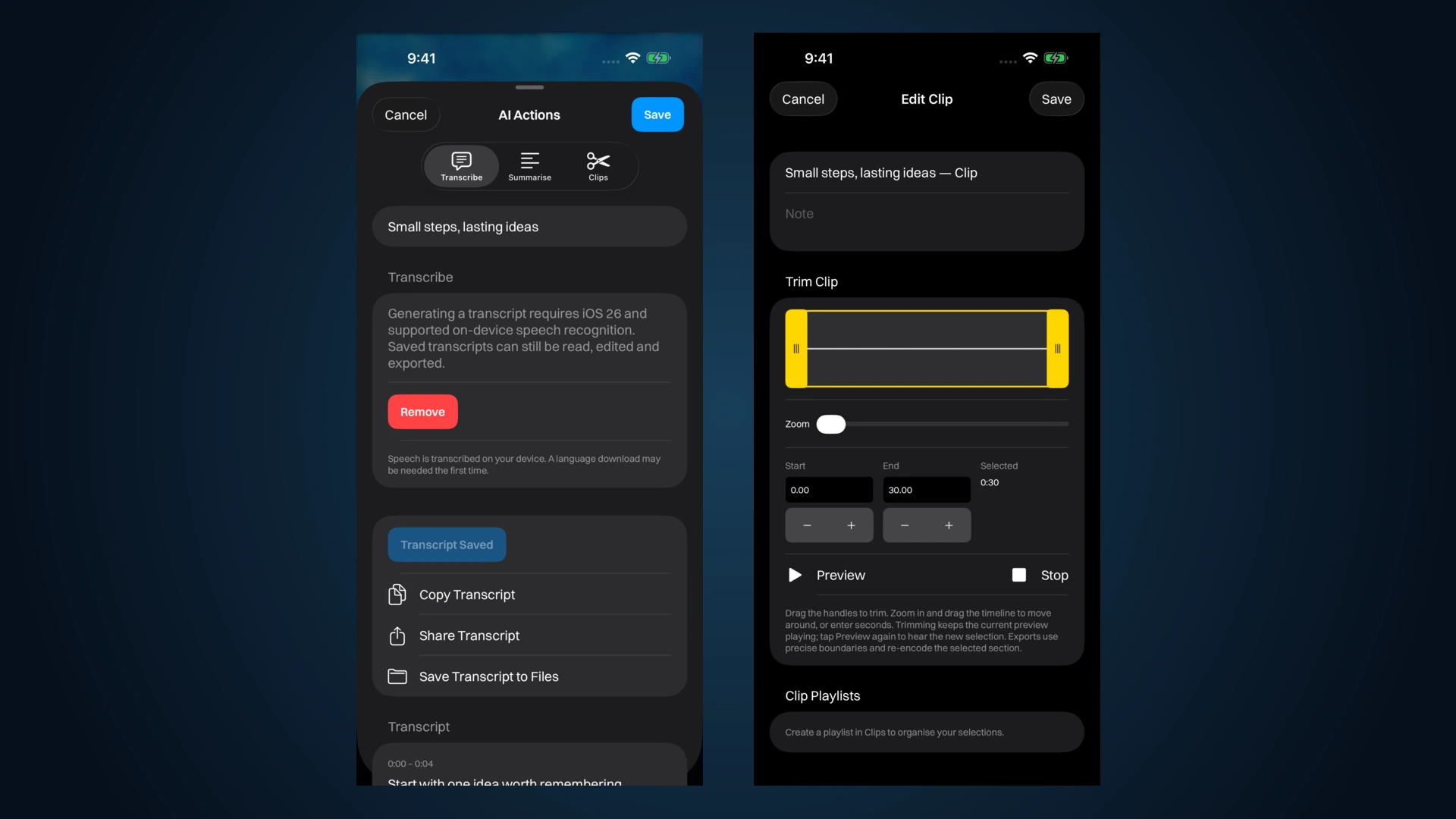
Check device support
Transcription and AI summaries have separate requirements. Summaries and highlight suggestions need a supported iOS 26 device, Apple Intelligence enabled, a ready on-device model and a supported transcript language. Saved summaries remain readable and exportable without generation support.
Check the transcript
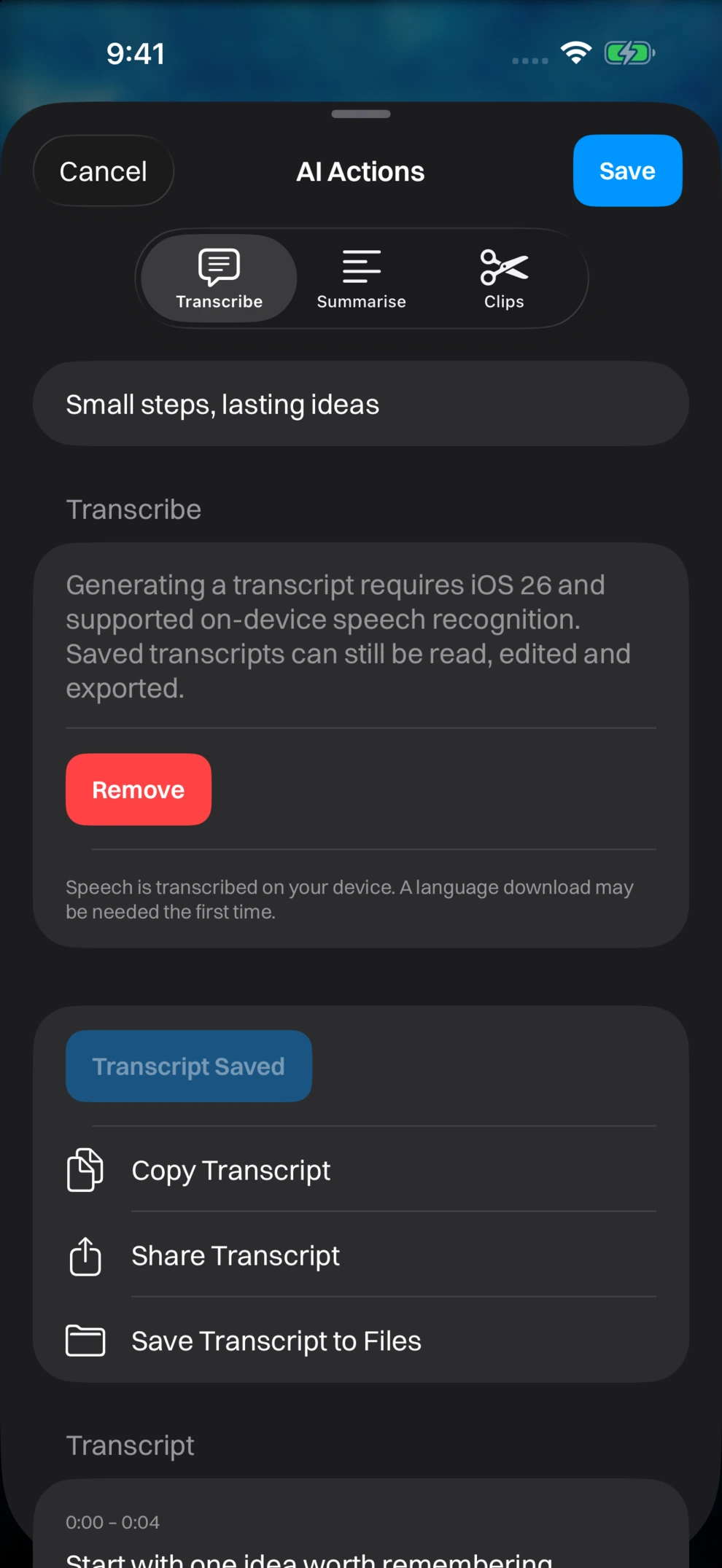
Open AI Actions from the player’s sparkle button or the track menu. Generate or open the transcript and correct it against the audio. Summaries and highlights are based on that text, so recognition errors can carry into the result.
Make a summary
Open Summarise and choose Description, Overview or Key takeaways. Generate, review and edit the text. Save it with the track, copy/share it or use Save Summary as PDF. Keep the recording as the detailed source; a summary necessarily leaves things out.
Find highlights
Open Clips. Request up to five highlights and a preferred length of thirty seconds, one minute or two minutes. The actual number and length depend on the available complete passages. Preview each suggestion before keeping it.
Check and save clips
Choose Review & Trim to adjust the boundaries, title, note and playlists. Save a clip or create the reviewed suggestions. The source recording is preserved. Editing the transcript marks earlier summaries and suggestions out of date; regenerate before relying on them.