

Turn speech into text
Turn an existing voice memo or lecture recording into corrected, reusable text.
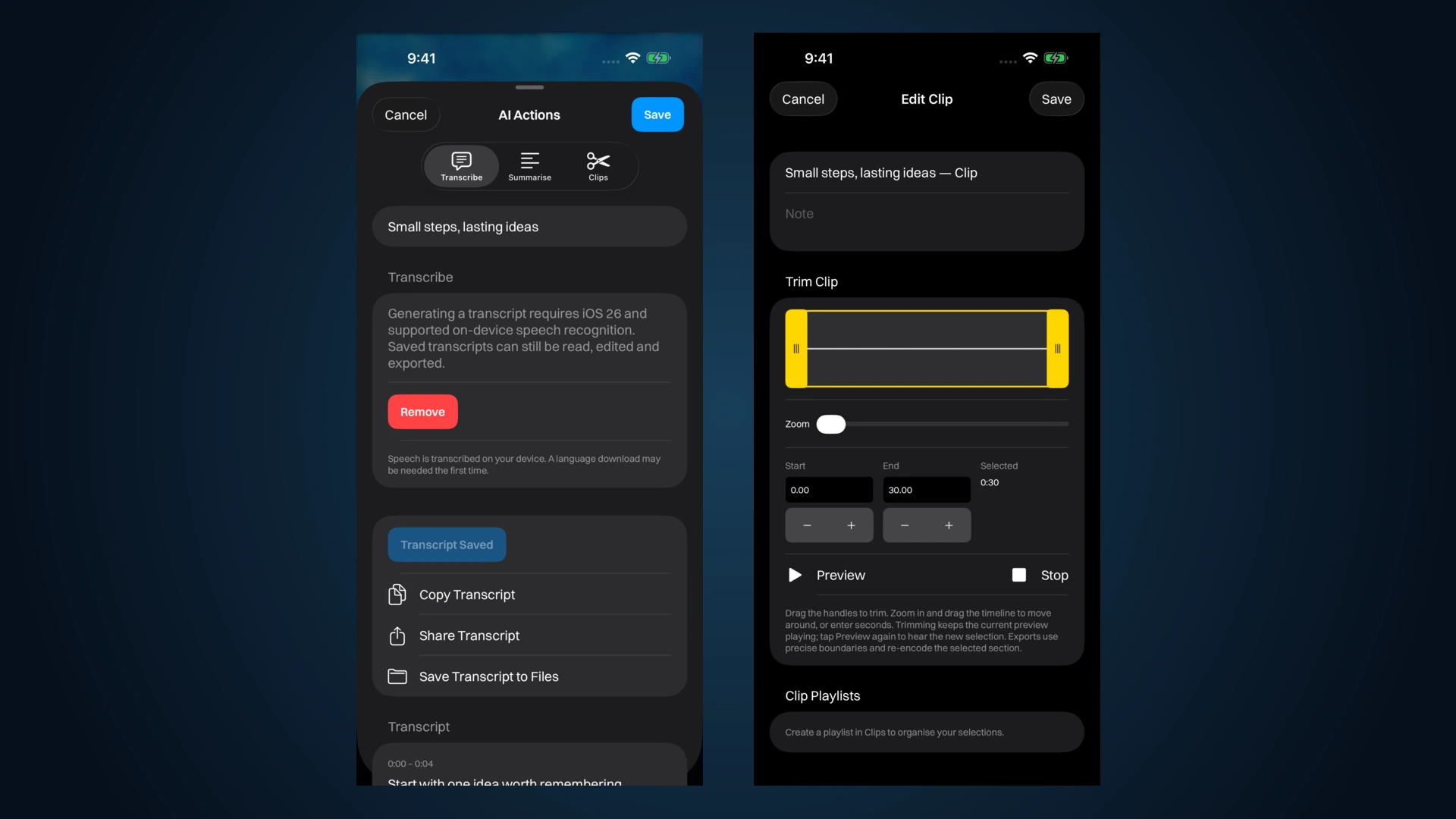
Add a recording
Record in Voice Memos or another recording app. In Voice Memos, open More (…), choose Share, then Smart Playlists; use More in the share destinations if needed. Choose a destination, tap Add, then Done, and open Smart Playlists to finish. Alternatively, save the recording to Files and import it from there.
Open AI Actions
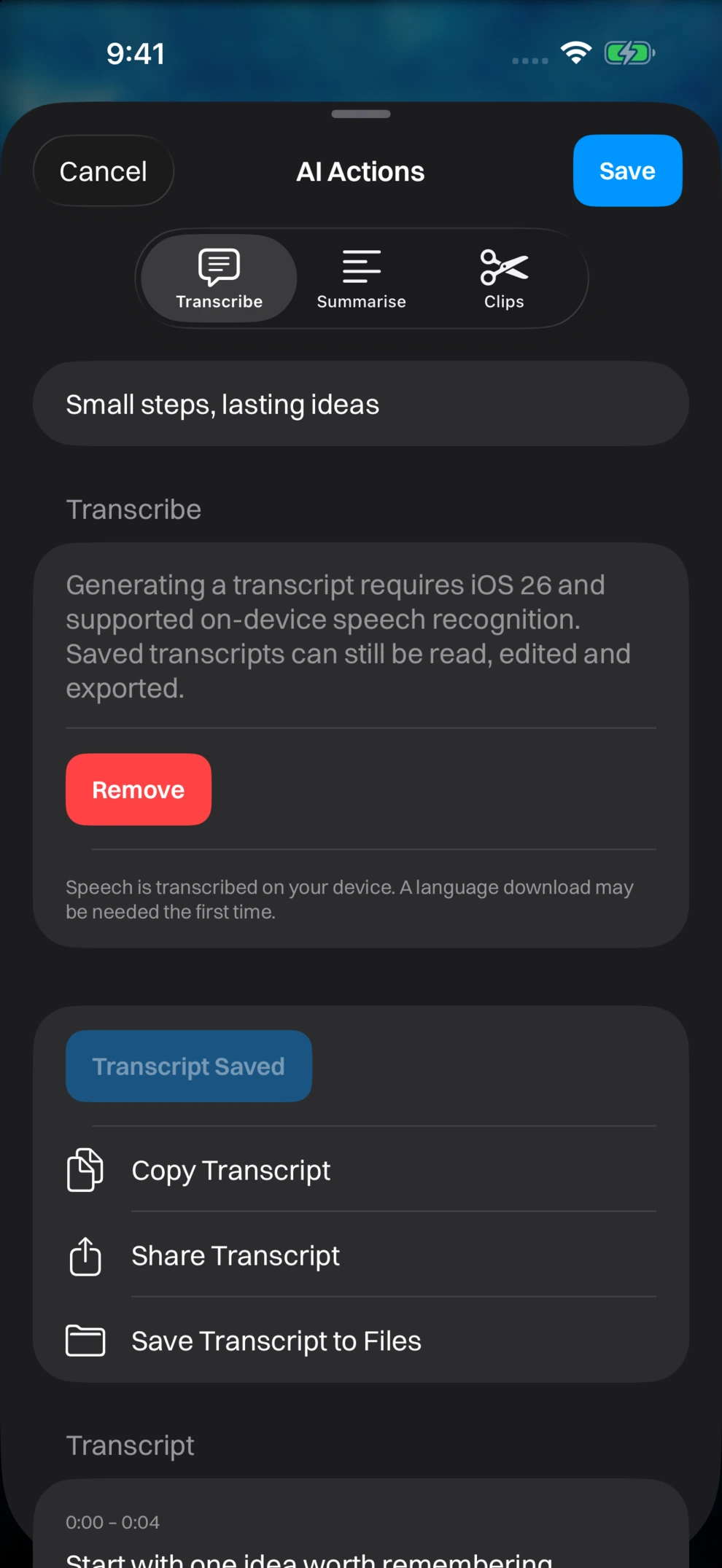
Play the recording and tap the sparkle button, or long-press its track and choose AI Actions. Open Transcribe and choose the spoken language. Generating text needs supported iOS 26 hardware and a supported language; a language model may need downloading.
Make and edit the text
Generate the transcript, then review the timed passages against the recording. Correct names, specialist terms and recognition mistakes. Save Transcript stores the corrected text; use Save at the top to save and close. A save failure keeps the sheet open.
Use the saved text
The saved transcript appears as timed subtitles during playback. Copy it, share it or save it to Files from the transcript actions. Reading and editing a saved transcript does not require the device to support generation.
Save a copy
A Smart Playlists archive can carry the saved transcript with its recording. Sharing the original audio file alone does not embed that transcript. To make text visible in an ordinary video, use Export as Video with captions.