

Add photos
Pair a person’s voice with their photo, or accompany a lesson with an ordered set of images.
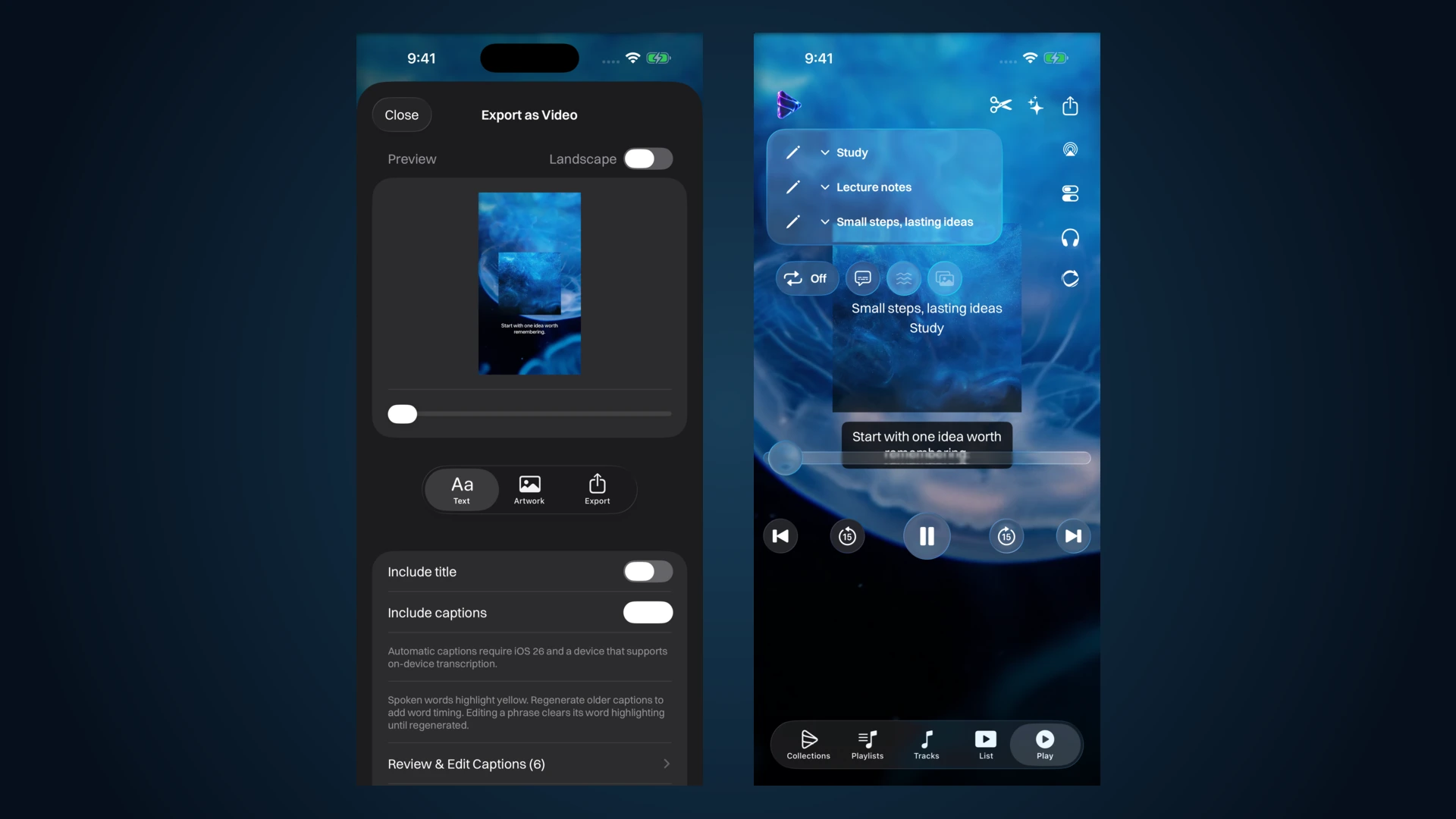
Choose a recording
Import your audio, then open Edit Media for the track. Use a family voice recording for a portrait or a lecture for relevant course images. The images are artwork attached to the audio; they do not change its sound.
Add a photo
Open Artwork and choose an image from Photos or Files for the track artwork. Save and play the track to check the result. A single portrait is useful when the voice and person are the focus.
Add more photos
In Artwork, use Add Images from Photos or Files. Arrange their order and choose Change image every. Up to twenty images are supported, with the available count also depending on track duration and interval. All images share one interval; this is not a timeline for assigning each image to an exact sentence.
Play a slideshow
Use the player’s slideshow control or Settings → Slideshow Playback to show the image sequence during listening. Slideshow Playback is off by default. The sequence repeats when needed; clips start the sequence from the first image.
Share it
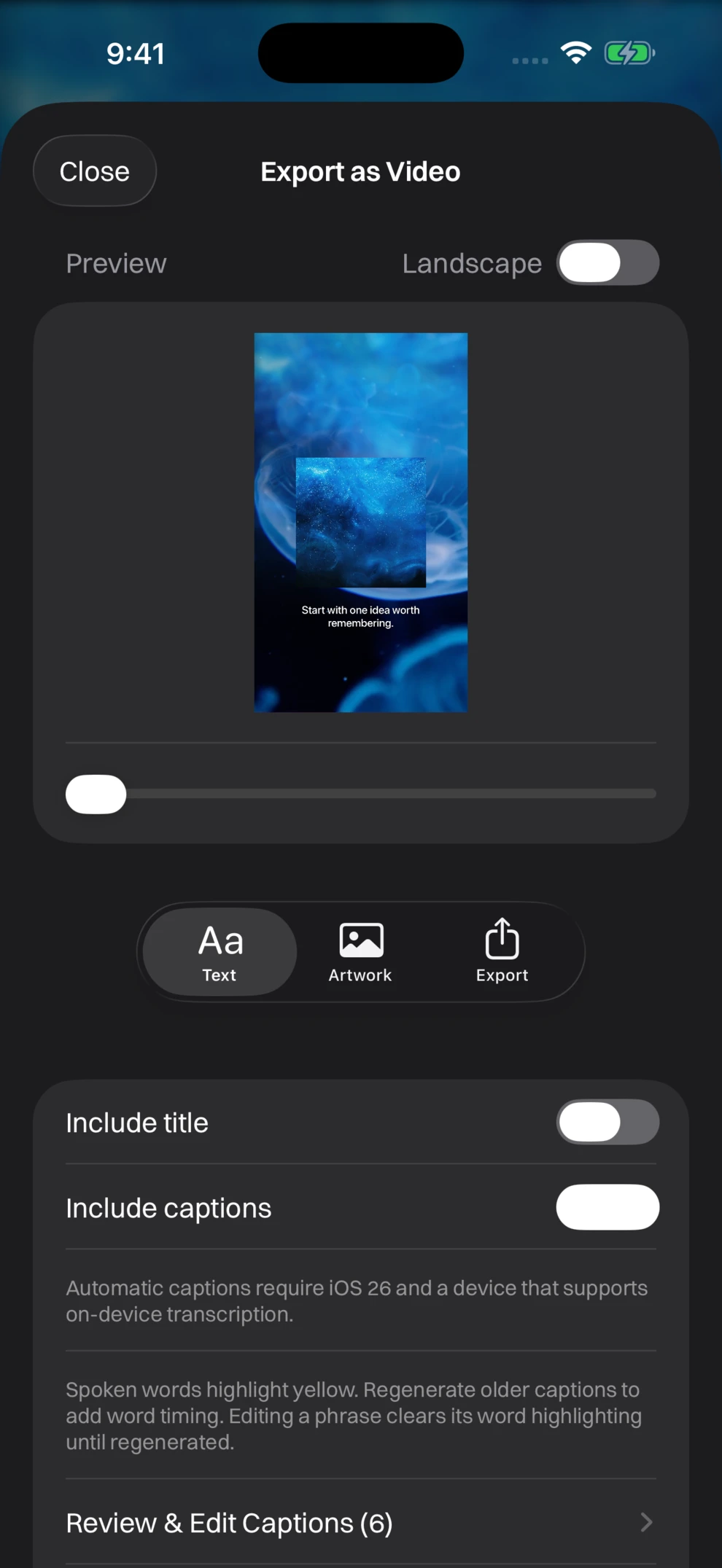
Use a Smart Playlists archive to preserve supported artwork and slides, or Export as Video to create an MP4 containing the sound and pictures. Sharing the raw audio file alone does not include a playable slideshow.