

Share and back up
Choose the right transfer for a media file, a prepared playlist or a full backup.
Add files
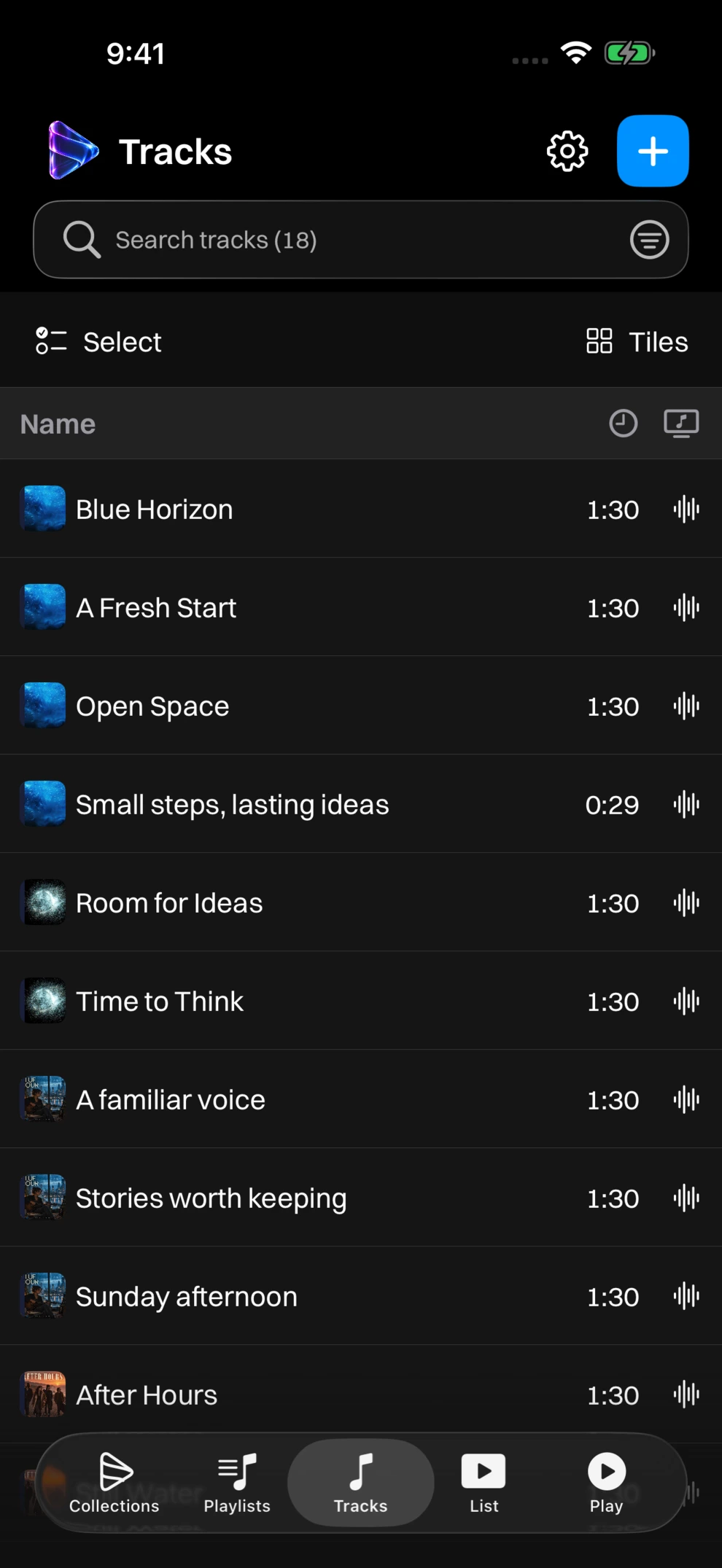
Use Files for audio and video, Photos for video, or Share/Open In from another app. Cloud providers work through Apple’s Files app when enabled there. Wait for the provider download and app import to finish before relying on offline playback.
Share a playlist or mode
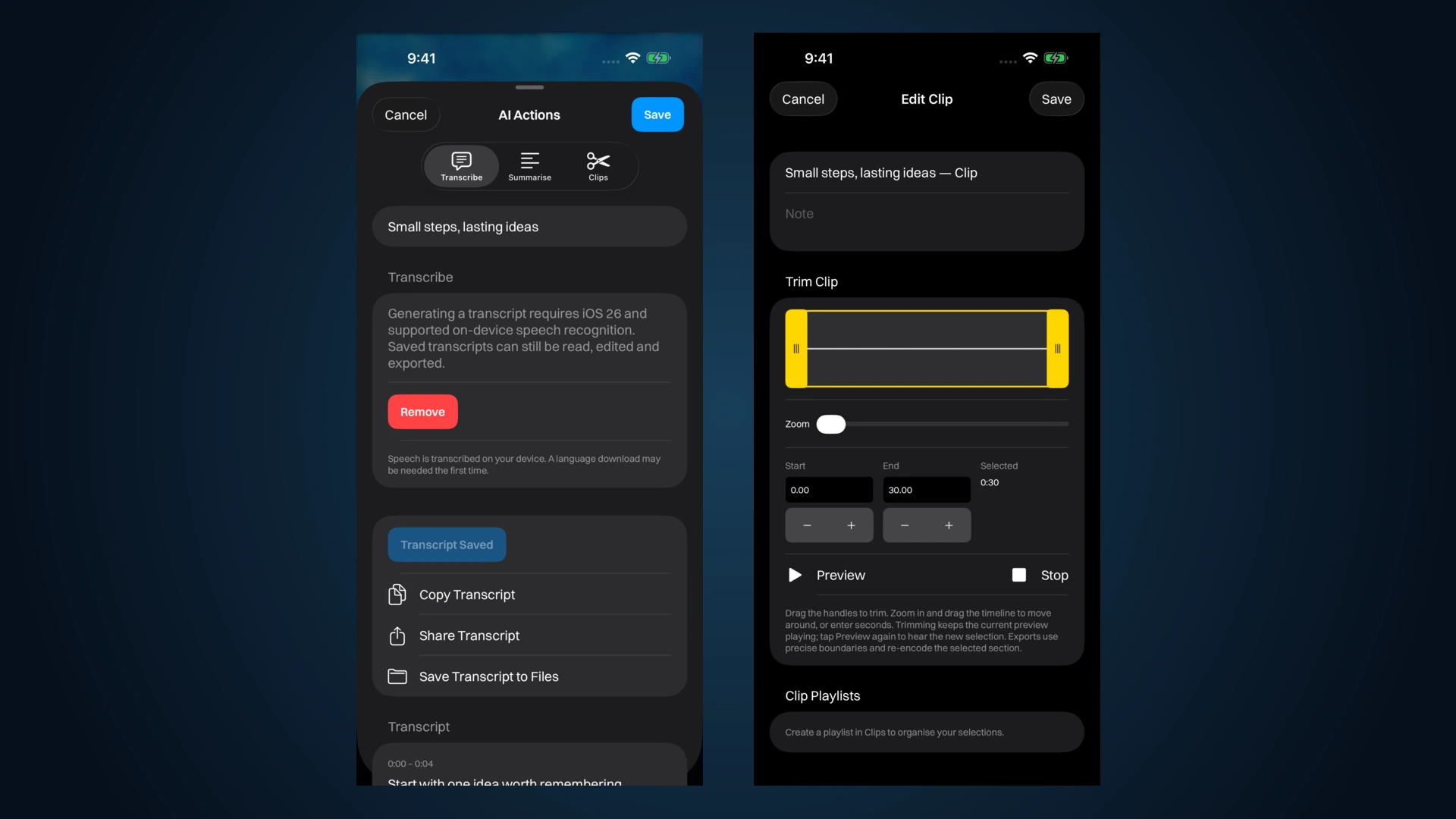
Open its share/export action. In Export Manager, review the playlists and tracks included in the exported copy. Share the Smart Playlists .modes file or save it to Files. Supported artwork, names, ordering, transcripts and summaries travel with the media.
Open a shared file
The recipient needs a compatible Smart Playlists version. Open the .modes file, review the preview and import. This adds an independent copy to their library; future edits do not synchronise between you. Repeated imports can reuse shared identities and preserve existing receiving edits.
Share audio or video
Use ordinary media sharing for an audio/video file, or Export as Video to include images and visible captions. These do not require Smart Playlists at the receiving end. An original audio file alone does not carry the app’s whole presentation or saved transcript.
Back up your library
Use Settings → Sharing & Backups → Export Full Backup for a full-library archive. A full backup includes personal listening information that an ordinary playlist share omits. Choose a prepared mode/playlist share for loved ones; use a full backup when you intend to transfer or restore the library and its supported personal state.
Check your copy
Open the exported file or import it on the intended device and check its media and organisation. Keep the original until that check is complete. Standard playlist/mode removal and deleting stored media are different actions.