

Get started
Bring in your first recording, find it again and understand how modes, playlists and tracks fit together.
Choose a mode
A mode groups media for a part of your life, such as Study, Music or Family. Playlists arrange tracks inside it. A track is an audio or video file; the same stored track can belong to more than one playlist.
Add a file
Open the library’s import action and choose Files for audio or video, or Photos for video. Select your destination and finish the import before starting playback. For a voice recording, record in Voice Memos first and use its Share action.
Play a track
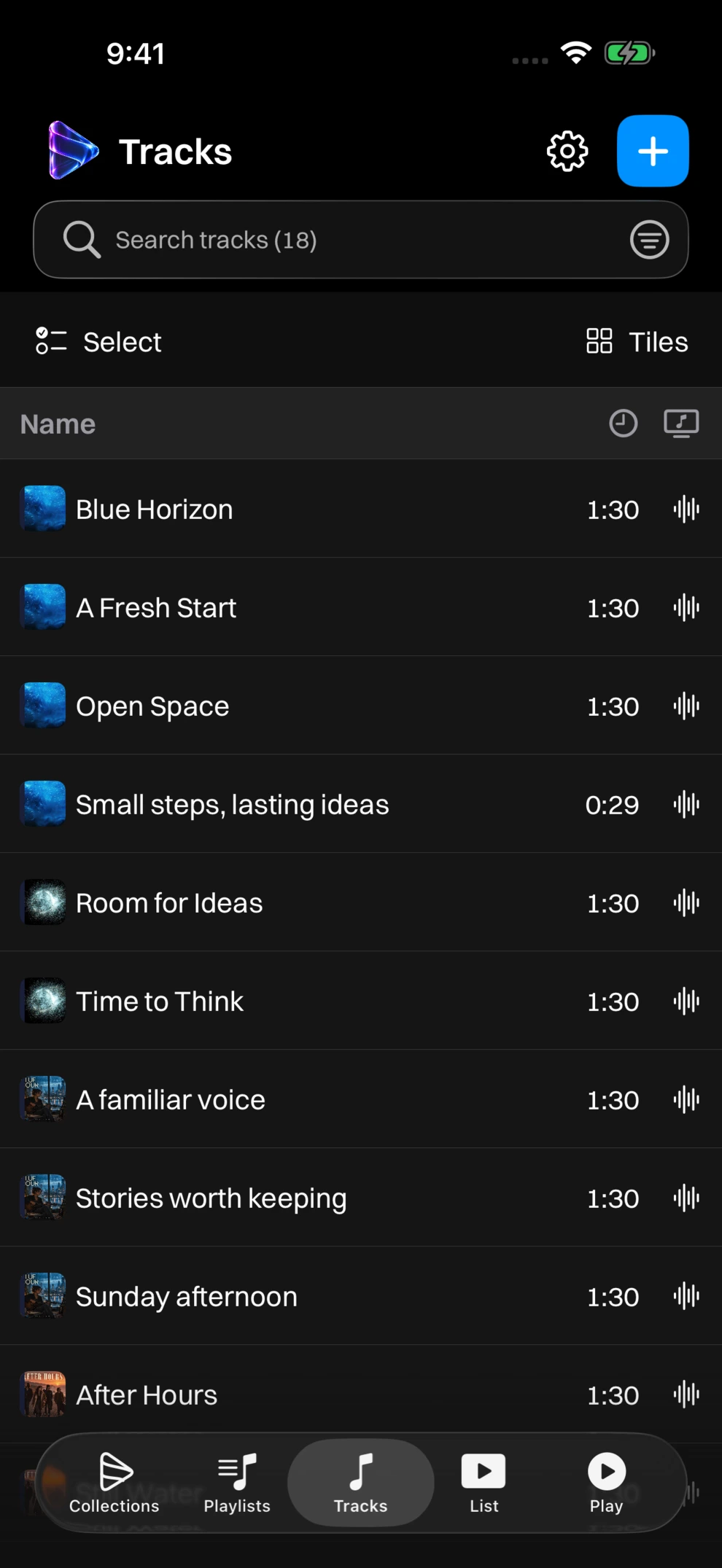
Open Tracks, find the imported title and tap to play. Use the visible play/pause and previous/next controls first. Open Play for the larger player. Reopening the app restores the last track paused at its saved position.
Make a playlist
Create a playlist for a specific purpose, add the tracks you want and arrange their playing order. Give it a recognisable name and artwork. A lecture can appear in both its subject playlist and a revision playlist without a second stored media copy.
Find more options
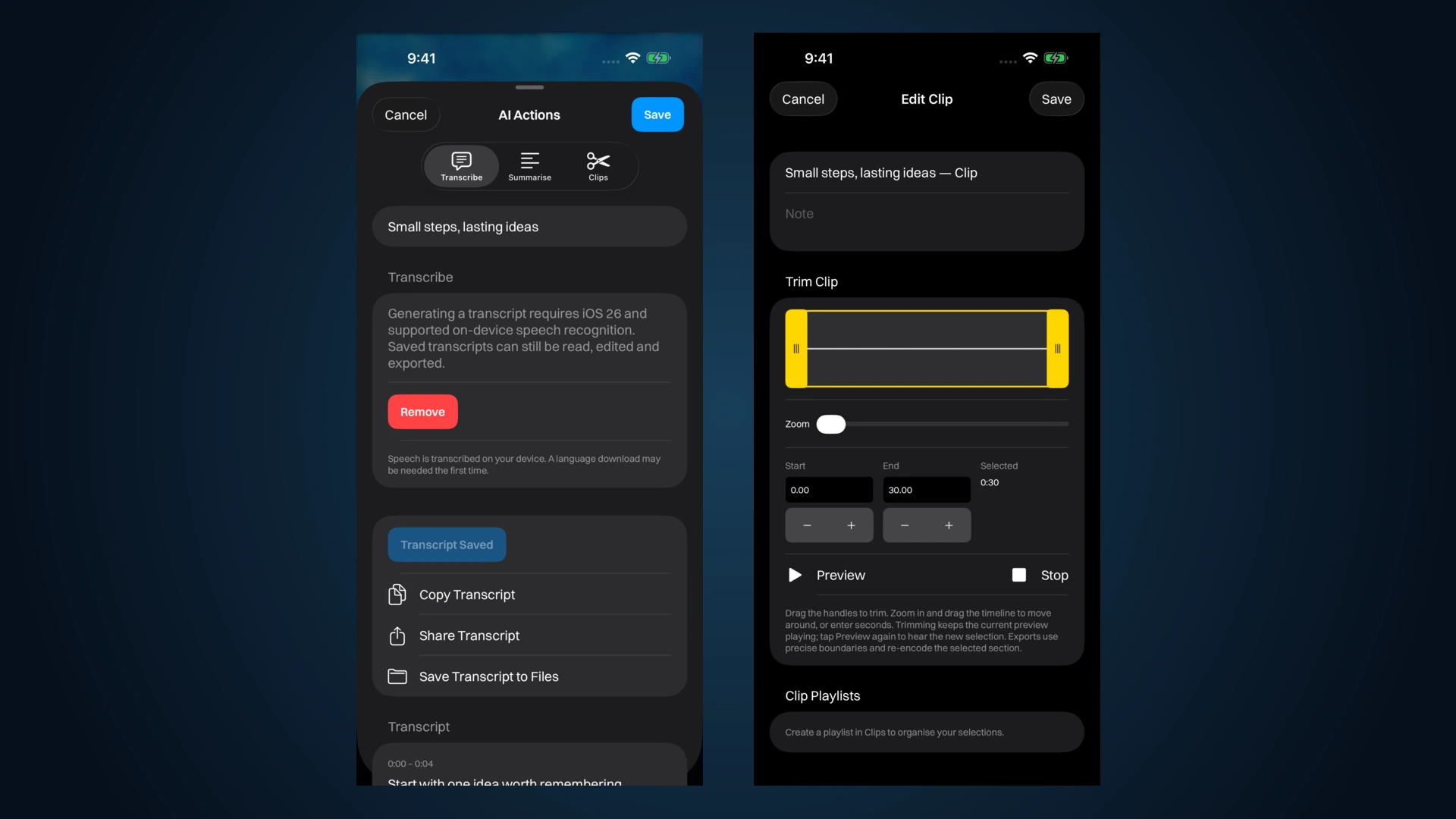
Long-press a track to see its available actions. AI Actions contains transcription, summaries and suggested clips; editing and sharing have their own actions. Standard removal from a mode or playlist keeps the media. Read deletion confirmation details before choosing an action that also deletes files.