

Play your media
Learn the visible controls first, then use gestures to move through your media.
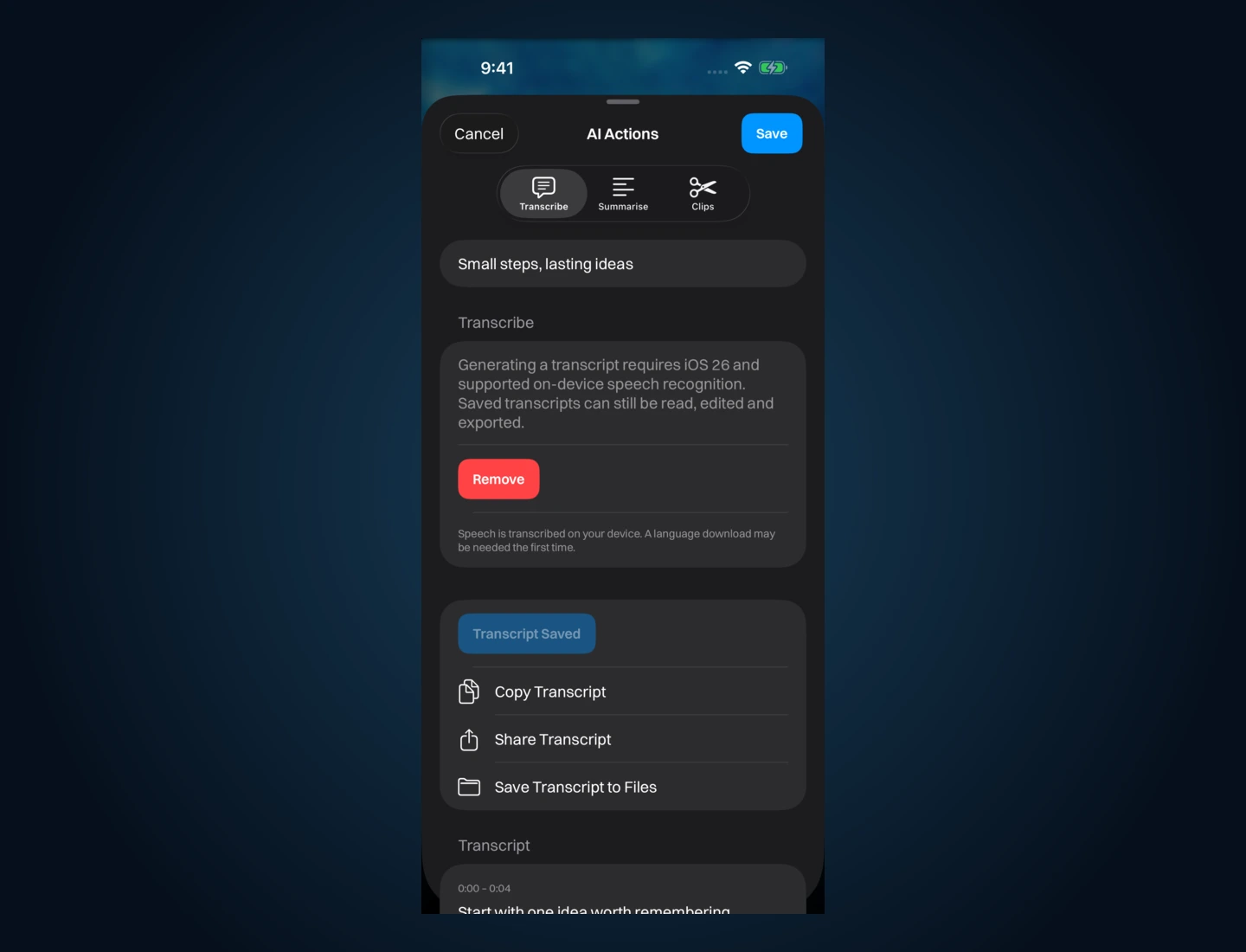
Switch tabs
Tap Modes, Playlists, Tracks, List or Play. Horizontal swipes also navigate the tabs in their displayed order and stop at either end. A horizontal swipe over an editable field, scrolling control or open sheet may belong to that control instead.
Change tracks
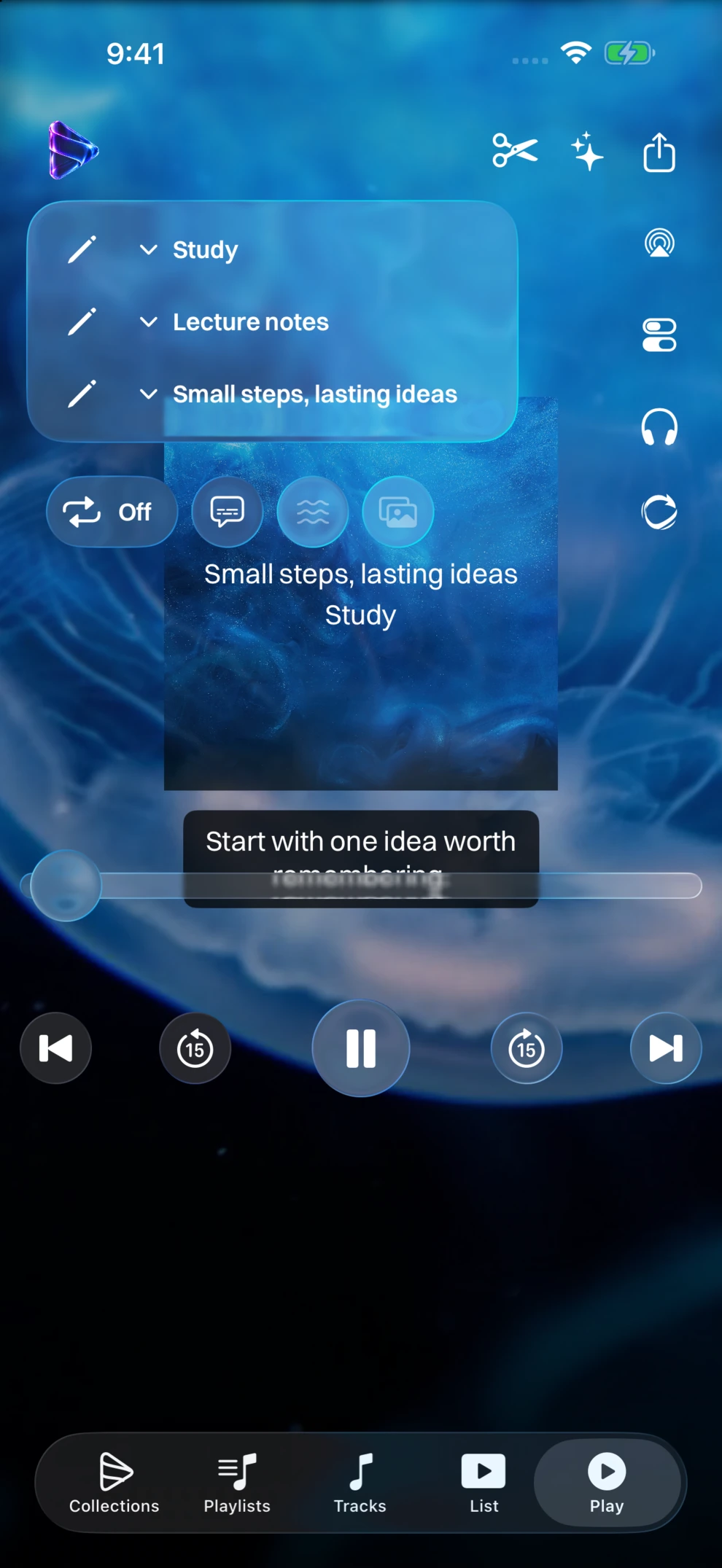
With Play Screen Gestures enabled, on Play double-tap an empty area near the left edge for the previous track or the right edge for the next. Swipe vertically to change playable playlists. The previous/next buttons and playlist selector provide visible alternatives.
Change modes
Hold the player background to change modes when Play Screen Gestures is enabled. Tap the background to hide or reveal the player interface. Tapping a button operates that button rather than hiding the controls. Use the mode selector when you prefer a visible choice.
Speed, repeat and timers
Open Listening controls for playback speed and sleep options. Use repeat for a track or playlist you want to hear again. Device buttons adjust volume. Focus sounds have their own continuous playback and timer controls, rather than ordinary track seeking and speed.
Change the artwork
With Play Screen Gestures enabled, pinch the artwork to adjust its corner roundness. This changes its shape, not the picture size. Open the artwork editor to choose a different image.
Choose a mode
Siri playback is in development and is not yet available in the released app. These commands require a Smart Playlists version that includes Siri playback support.
On iPhone, press and hold the side button to speak to Siri. Wake-word listening can stay off. Include “in Smart Playlists” in your request so Siri knows which app to use.
Say “Play News mode in Smart Playlists”. Replace News with your saved mode name. Siri asks you to choose a track from that mode; the built-in Focus mode starts its first track.
Choose a playlist
Say “Play my News 2 playlist in Smart Playlists”. Replace News 2 with your saved playlist name. Playback starts at its first track in saved order, or resumes its selected track if that playlist is already active. The built-in White Noise playlist asks you to choose a track.
Choose a track
Say “Play Morning Bulletin from my News 2 playlist in Smart Playlists”, replacing Morning Bulletin and News 2 with your saved track and playlist names. Naming the playlist helps distinguish tracks with the same title.
When Siri offers a choice, answer with the track name. A numbered answer may also work when Siri presents numbered choices. You can try “Play News 2 track two in Smart Playlists”; the position follows the playlist’s current saved order, so rearranging it changes which track is second.
Siri recognition depends on your device, language and phrasing. If a longer request is not recognised, say “Play a playlist in Smart Playlists” or “Play a track in Smart Playlists” and follow the choices. Cancel the choice to leave playback unchanged.
Playback settings
Siri uses your existing library and playback settings, including saved positions and each mode’s start-from-beginning preference. It does not fetch a news stream or automatically choose the latest recording. News and News 2 are examples of names you can give your own saved media groups.
If Siri cannot find an item, check its name and playlist membership in the app. Empty playlists, deleted tracks and unavailable media files cannot be played. Locked-phone and background behaviour still need verification on the supported release.