

Make a family video
Make a family voice recording easy to watch and share with people who do not use Smart Playlists.
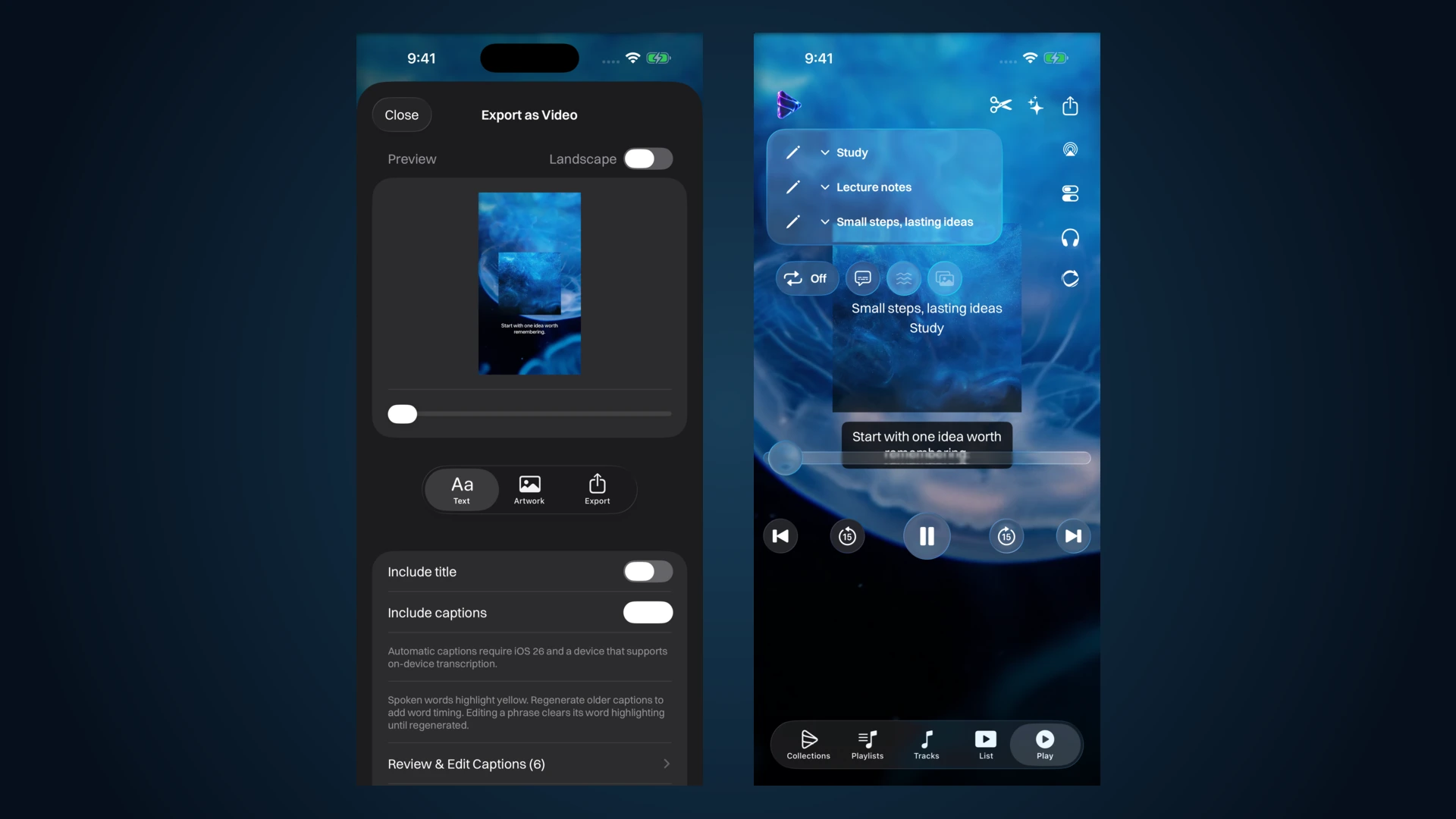
Add a voice recording
Import a voice memo or audio file into a Family mode. Choose a recording and photographs you have permission to share. Keep the original file as your source.
Add photos
Choose a portrait in Edit Media → Artwork, or add several pictures and arrange their order. Set one shared slideshow interval. A single photo often suits a short message; several images can accompany a longer story.
Add captions
Open AI Actions → Transcribe, generate the text on a supported device and correct names and phrases. Save the transcript. You can still make an image-and-audio video without generating captions.
Save the video
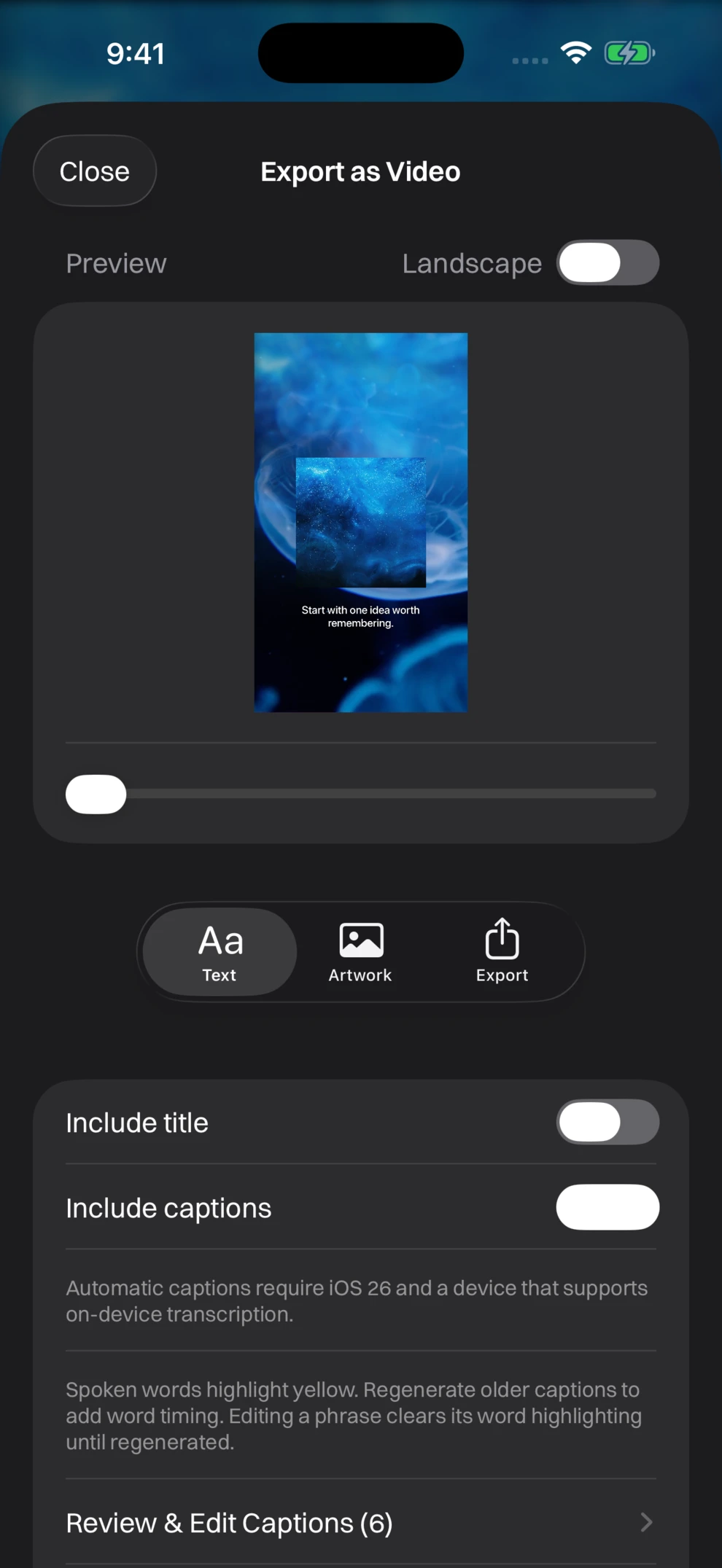
Open Share → Export as Video. Choose portrait or landscape, review the artwork/background and enable captions if wanted. Review the caption text before exporting. Use Share Video, Save Video to Files or Save Video to Photos.
Check before sharing
Play the completed MP4 from beginning to end and check the photos, voice, captions and orientation. The recipient can watch this ordinary video without Smart Playlists. To share editable organisation and supported saved text instead, send a prepared .modes playlist to someone with a compatible app.